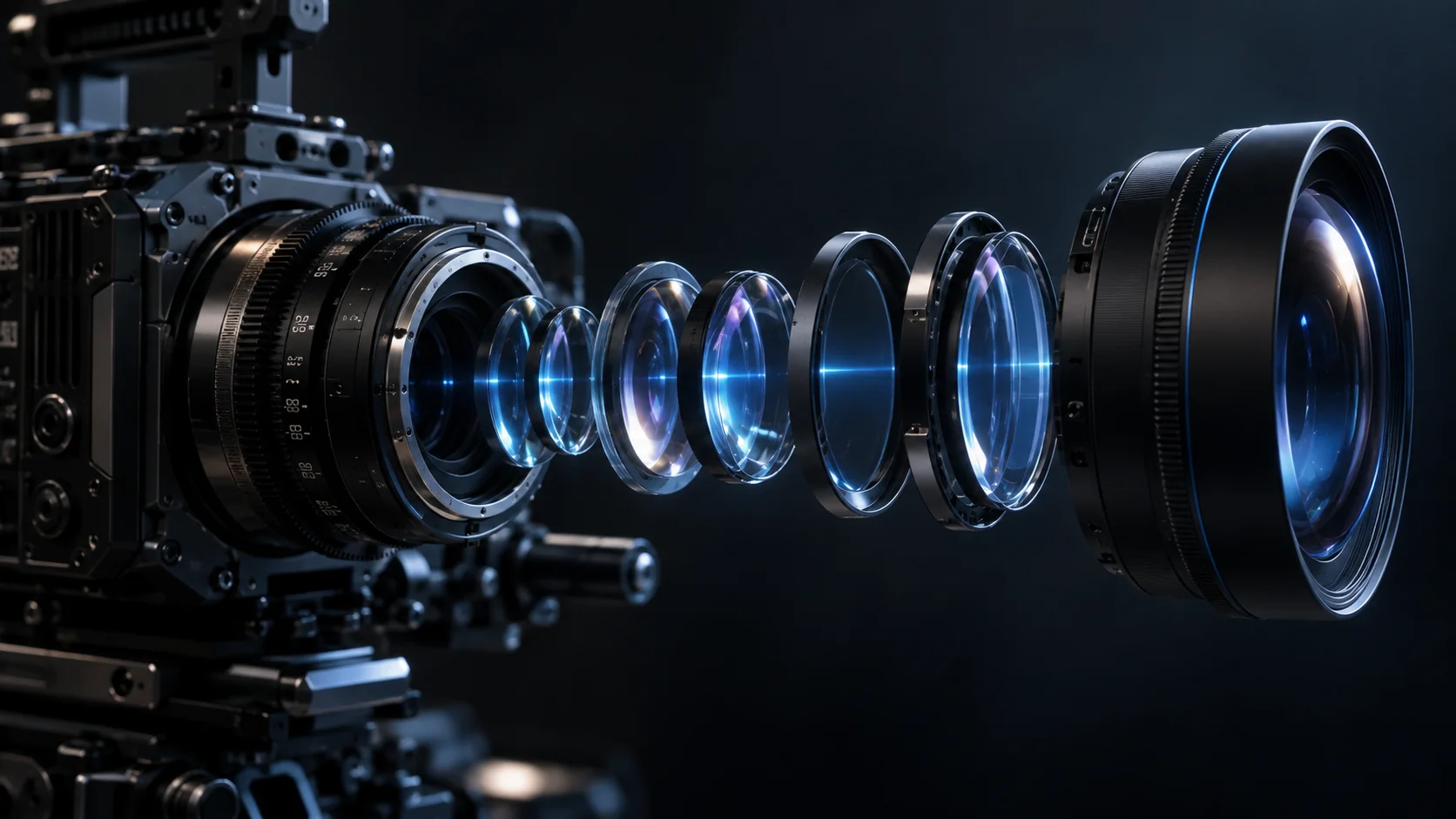
DESCRIBE THE LOOK. Mention lens feel, film grain, or lighting in plain words. The AI image generator interprets them as style cues, not exact camera settings
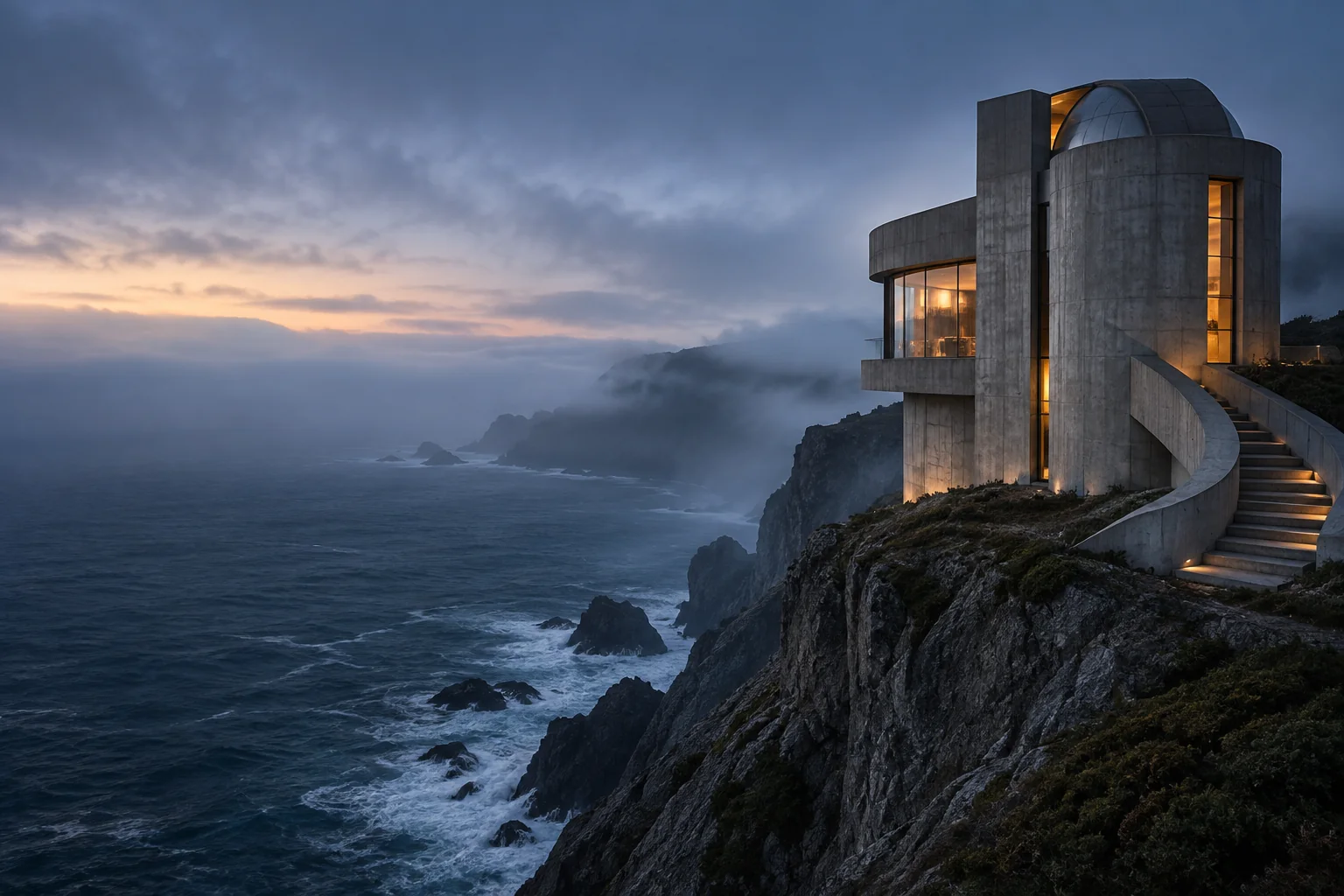
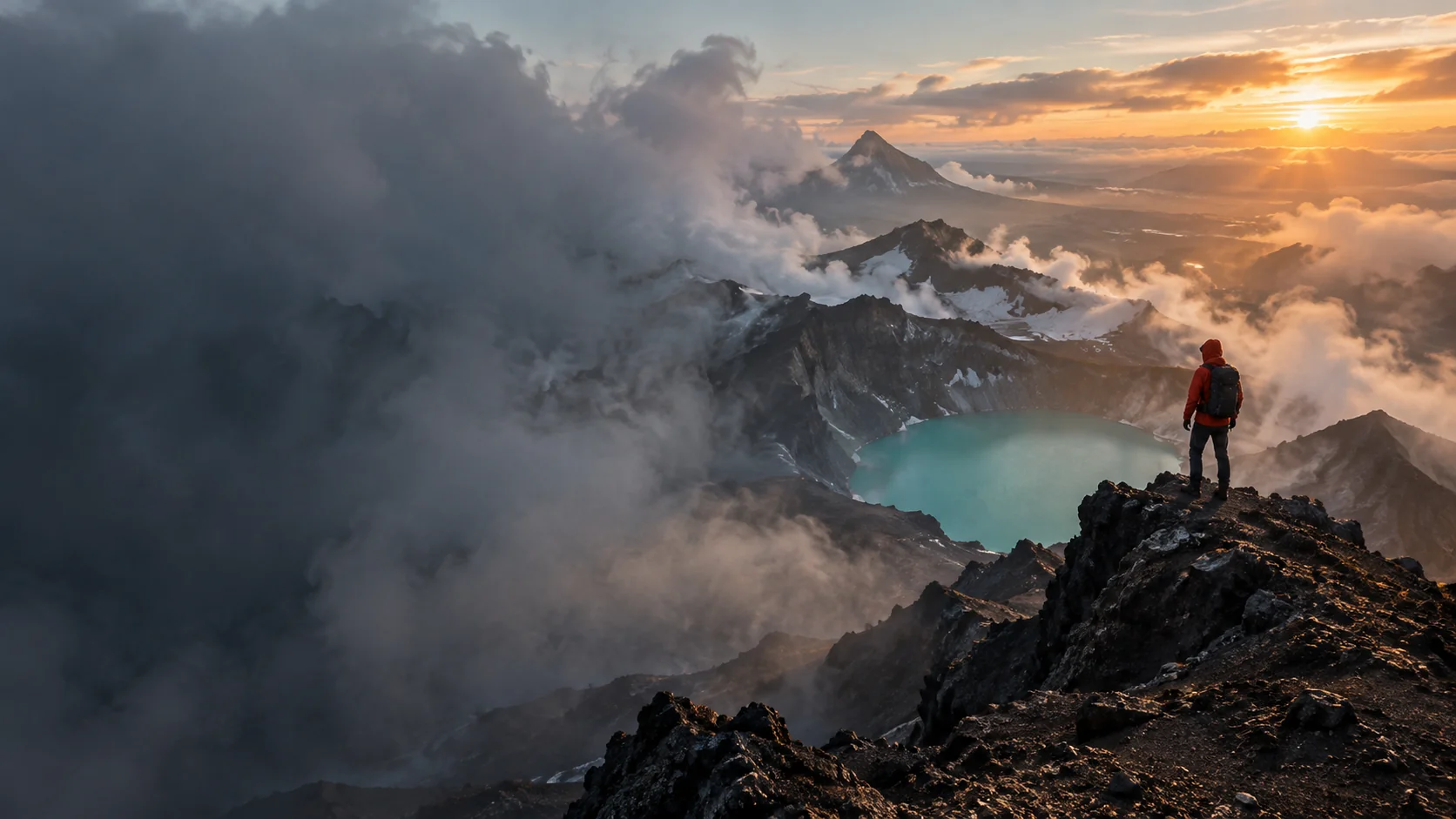
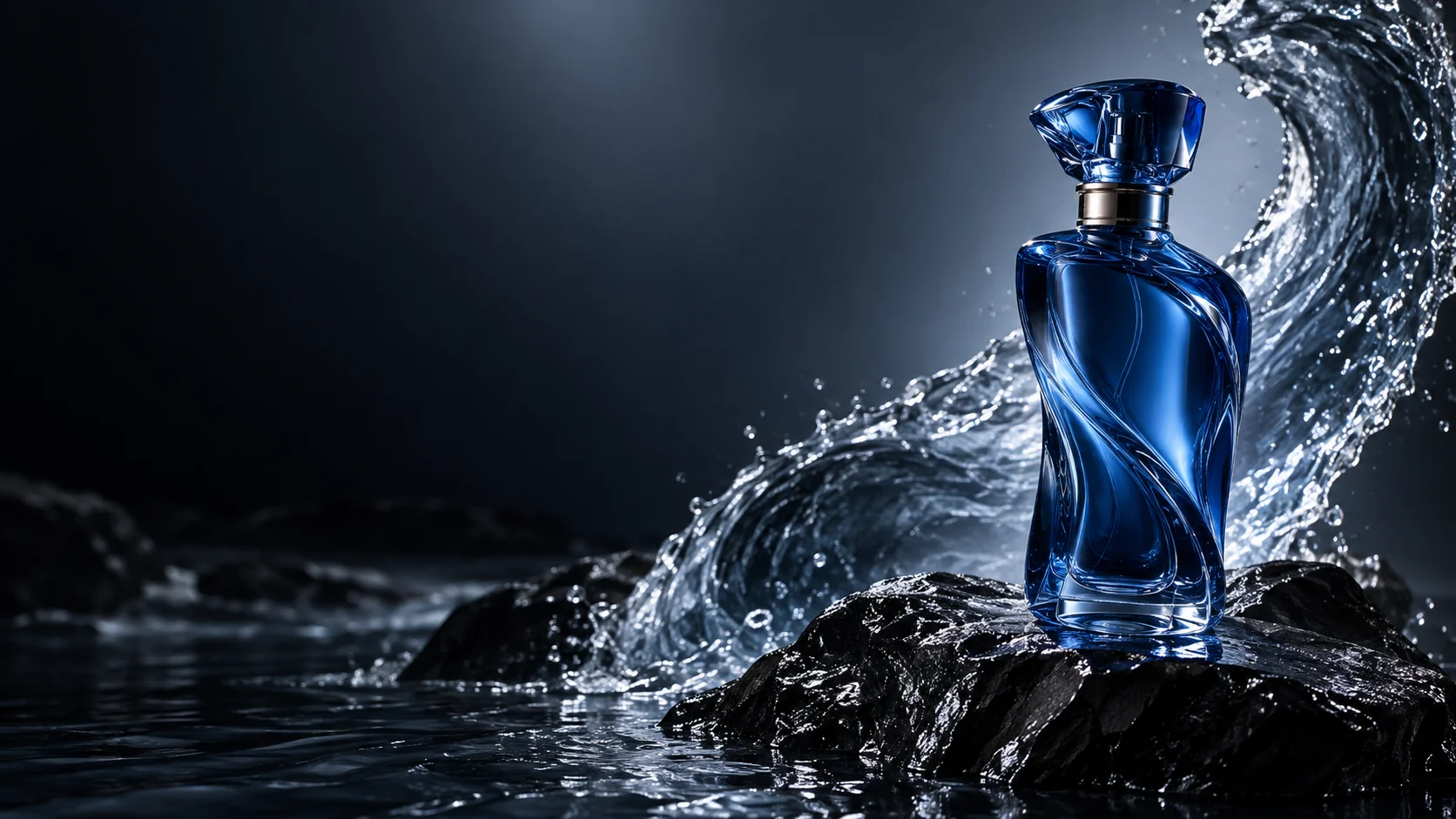
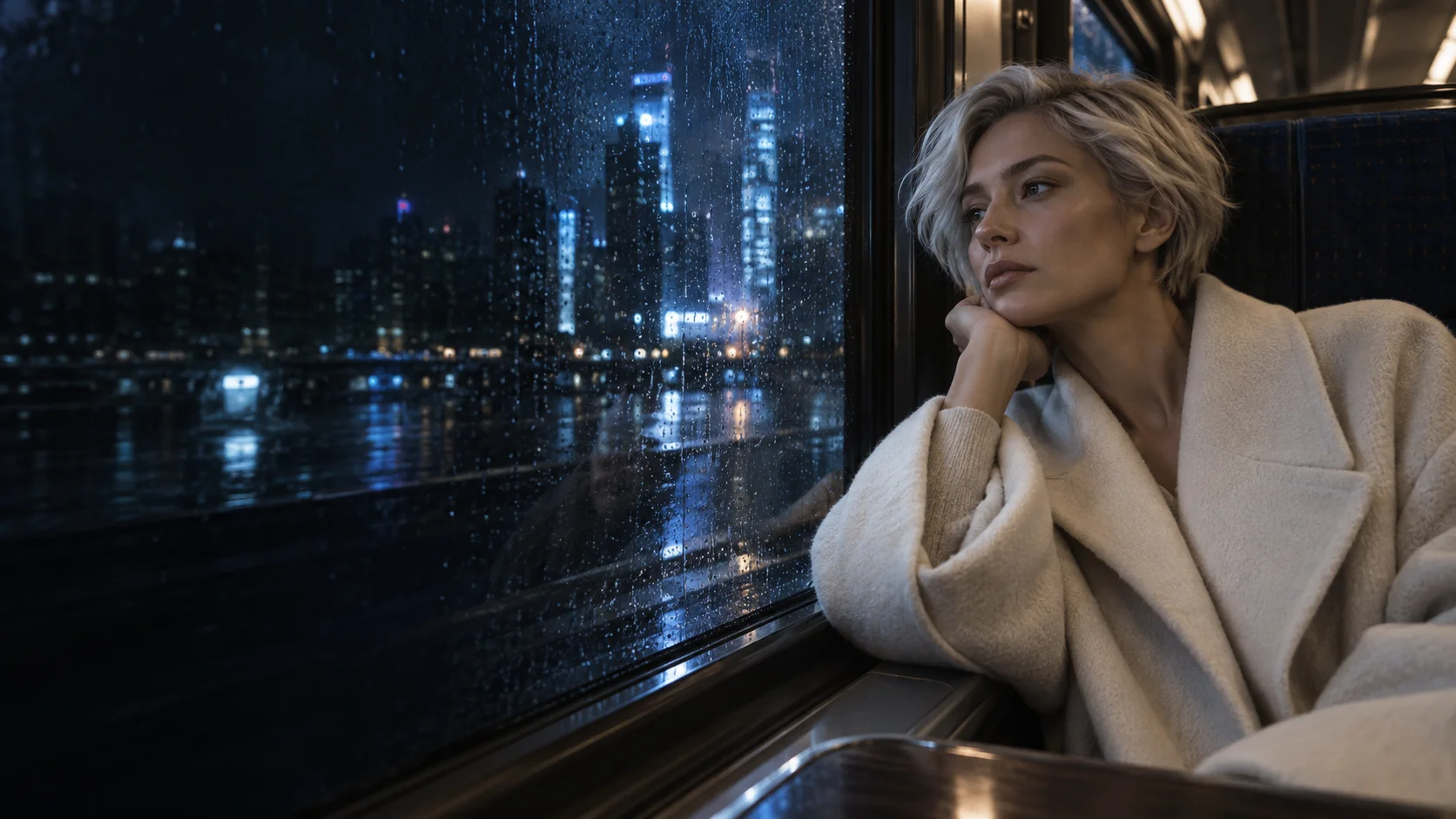
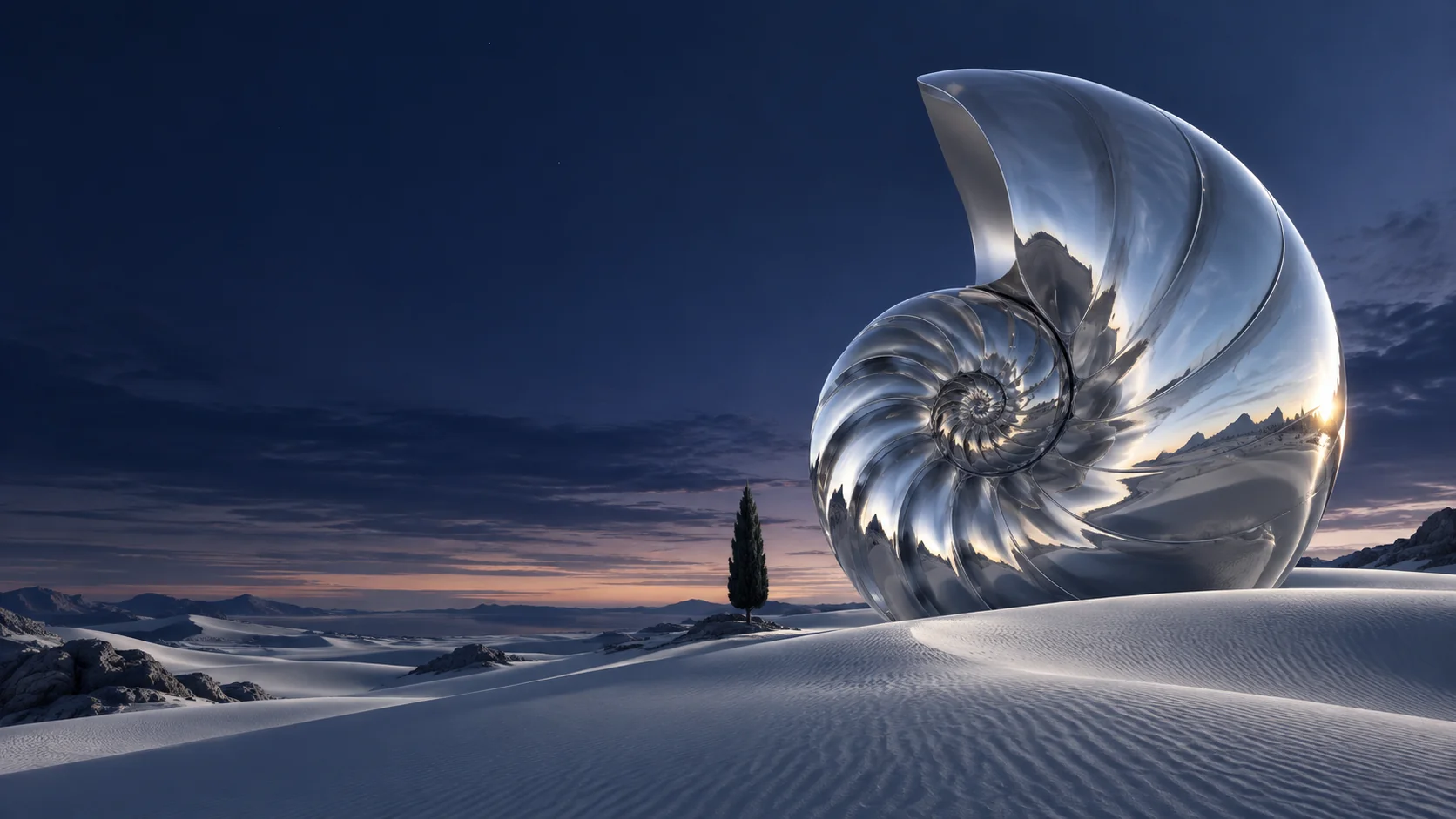
Type a prompt, choose a model, and let the Auteo AI image generator turn your words into images you can review and download
Generate an ImageAuteo brings prompt writing, model selection, and settings together so your AI image generator workflow stays in one place
Get started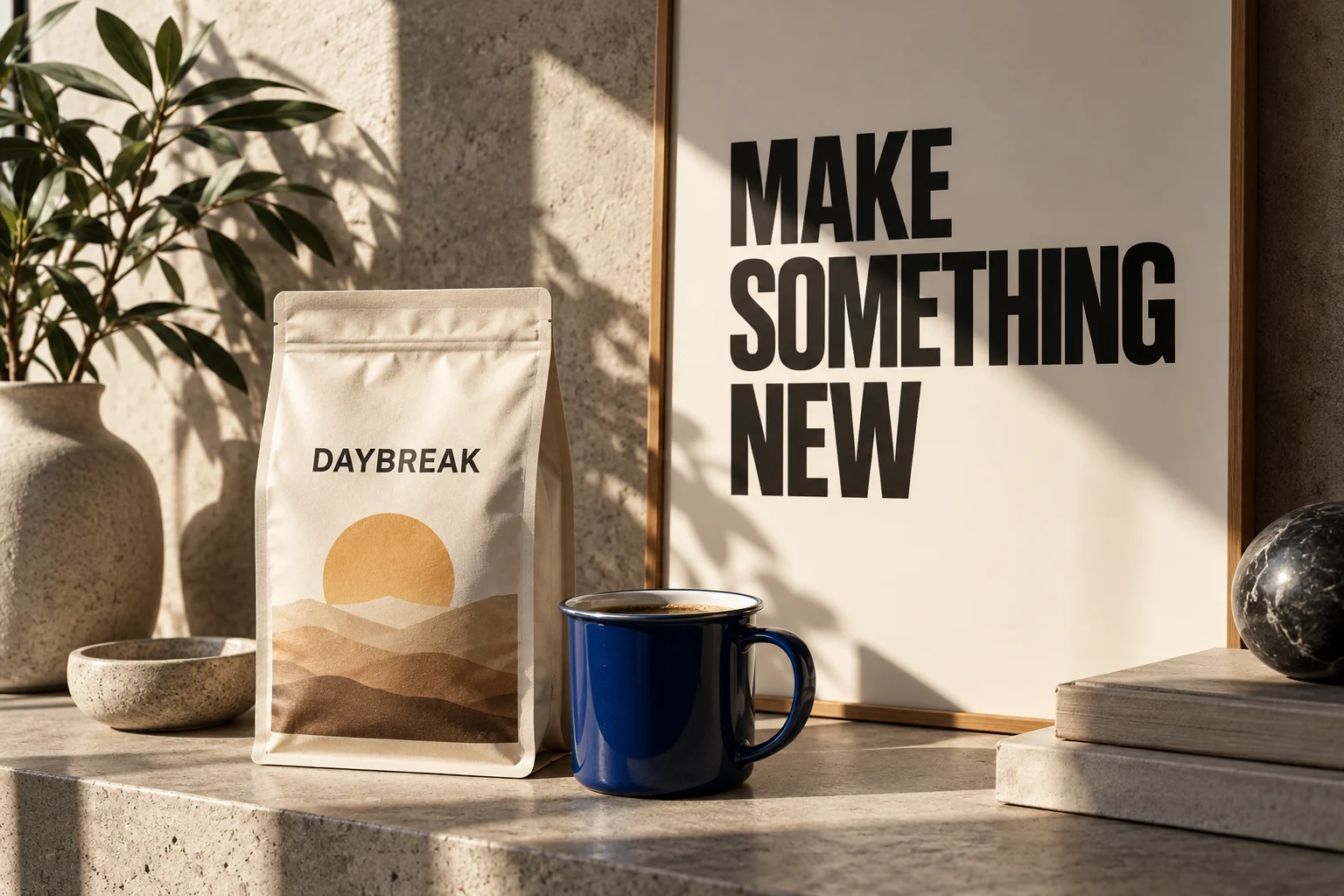
Ask for short headlines or labels in your prompt. Lettering varies by model, so proofread every AI image generator result before publishing
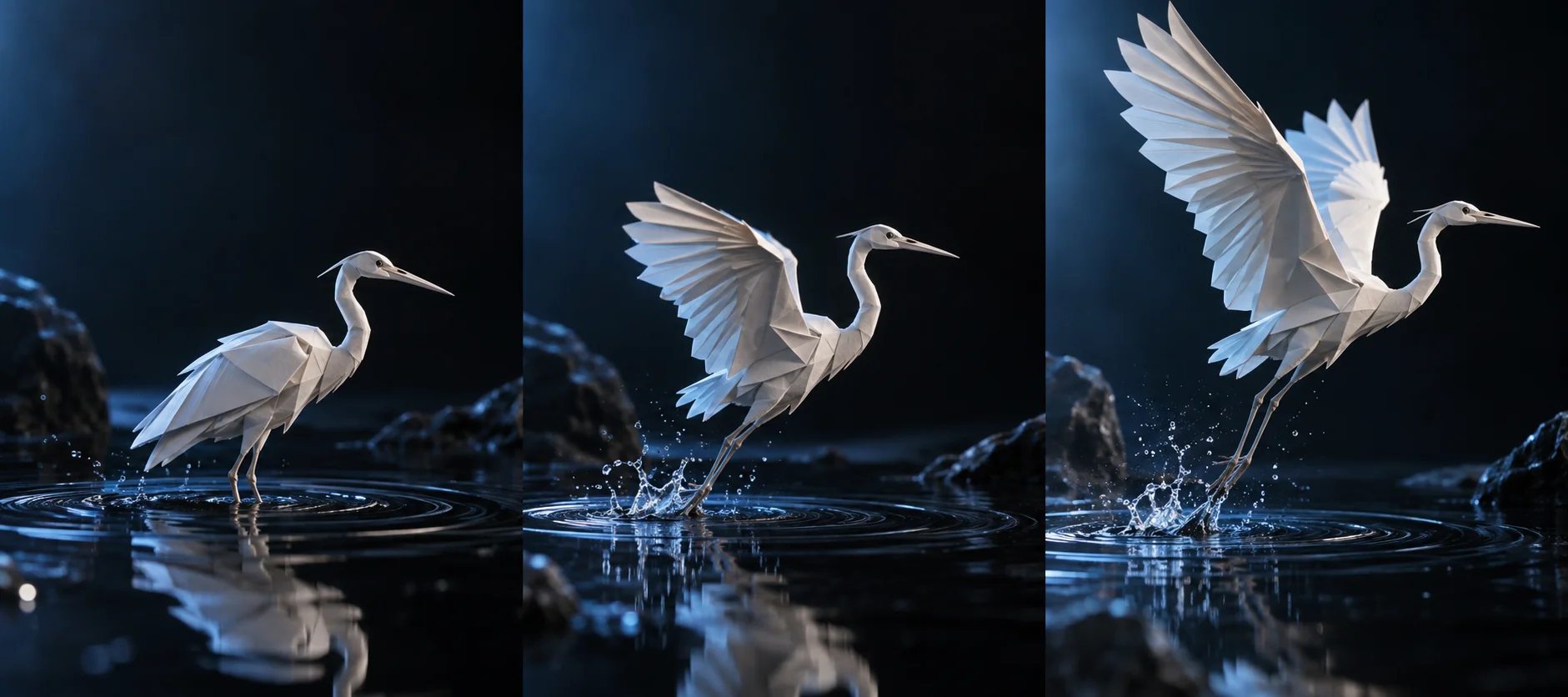
Download a chosen AI image generator result, then upload it as a reference in the separate Auteo video workspace to start a new clip
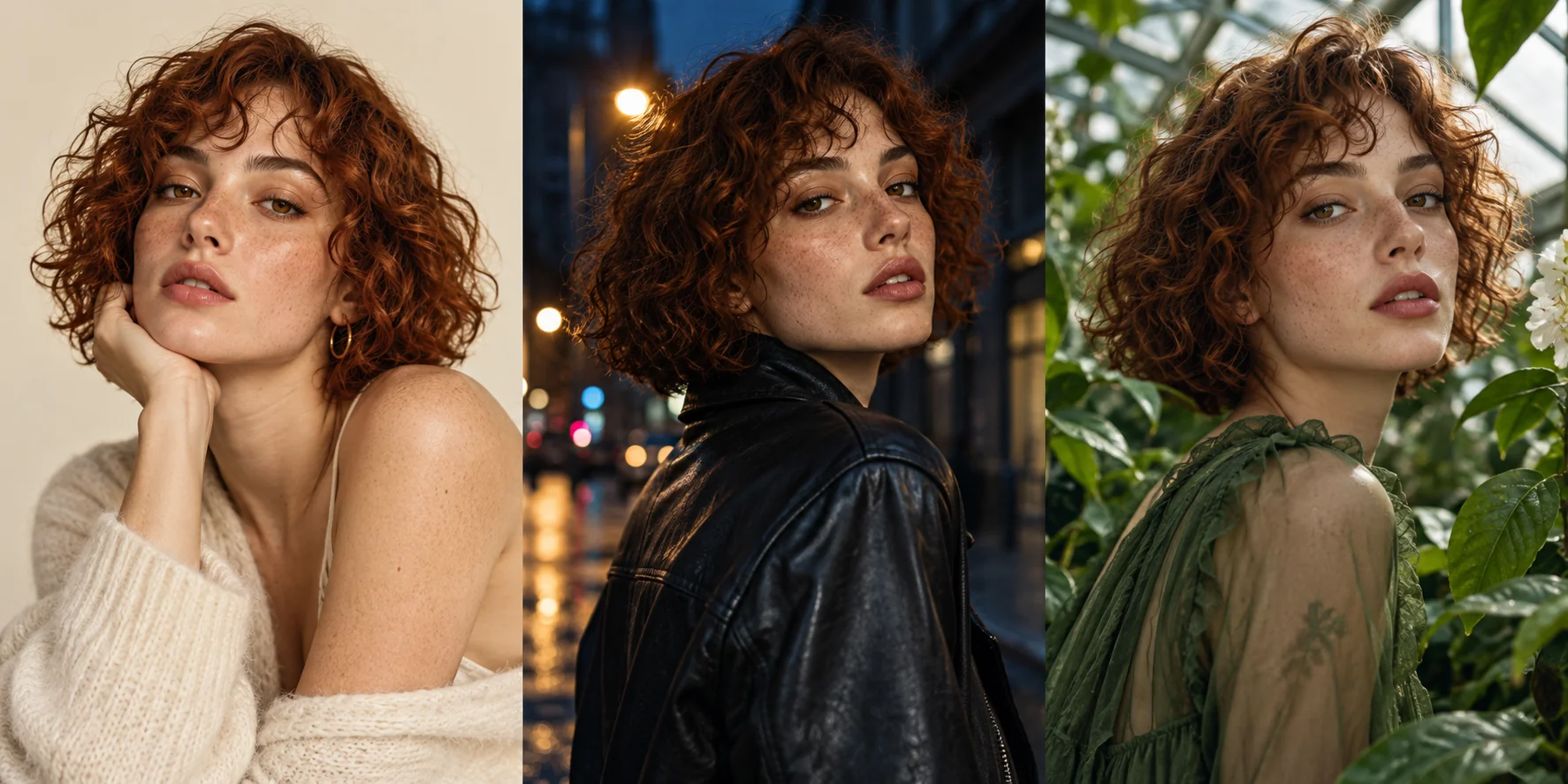
Keep a recurring subject recognizable by reusing detailed descriptions and settings. Results from any AI image generator can vary, so compare generations side by side
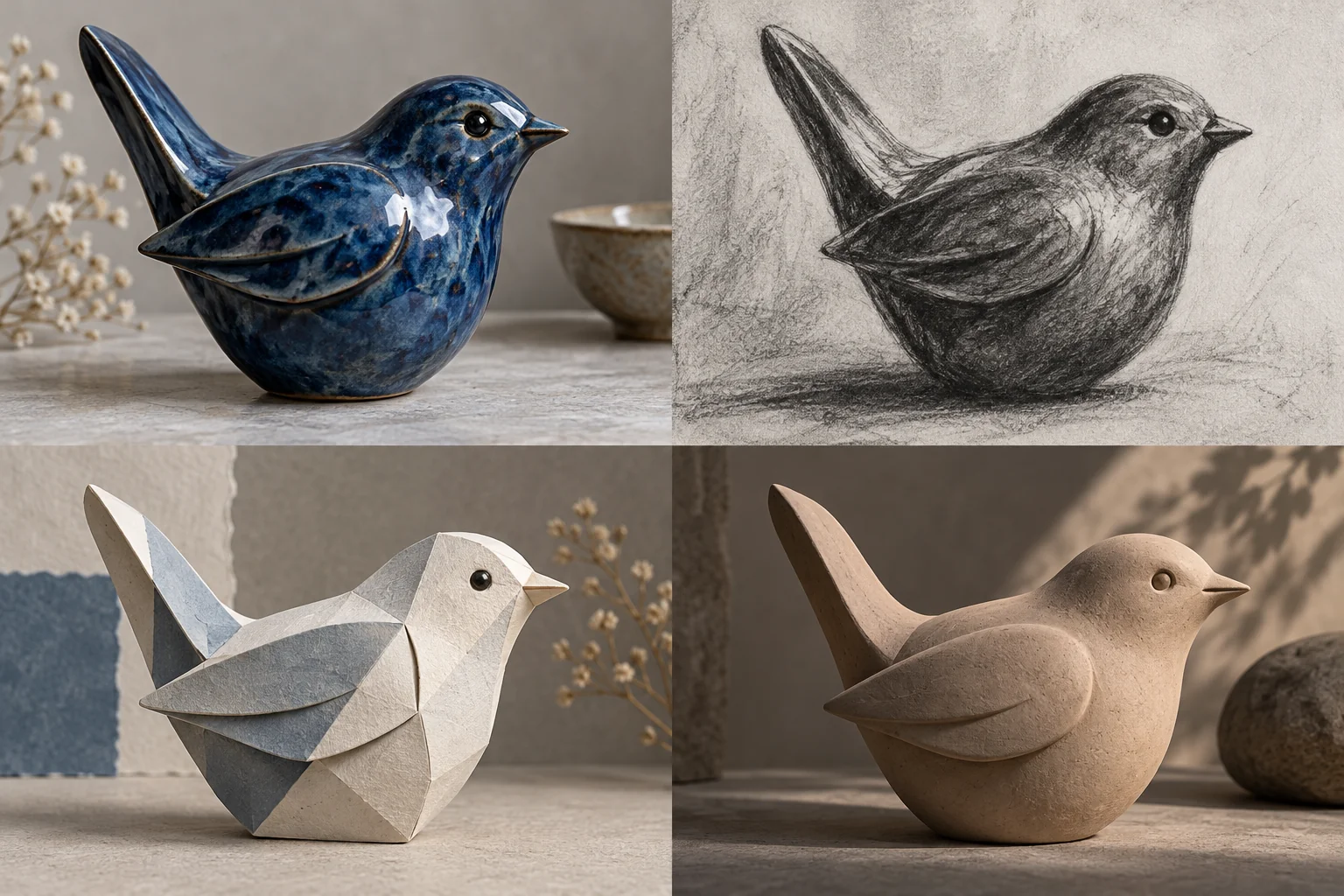
The AI image generator workspace lists the current image models, including GPT Image 2. Run the same prompt and compare results
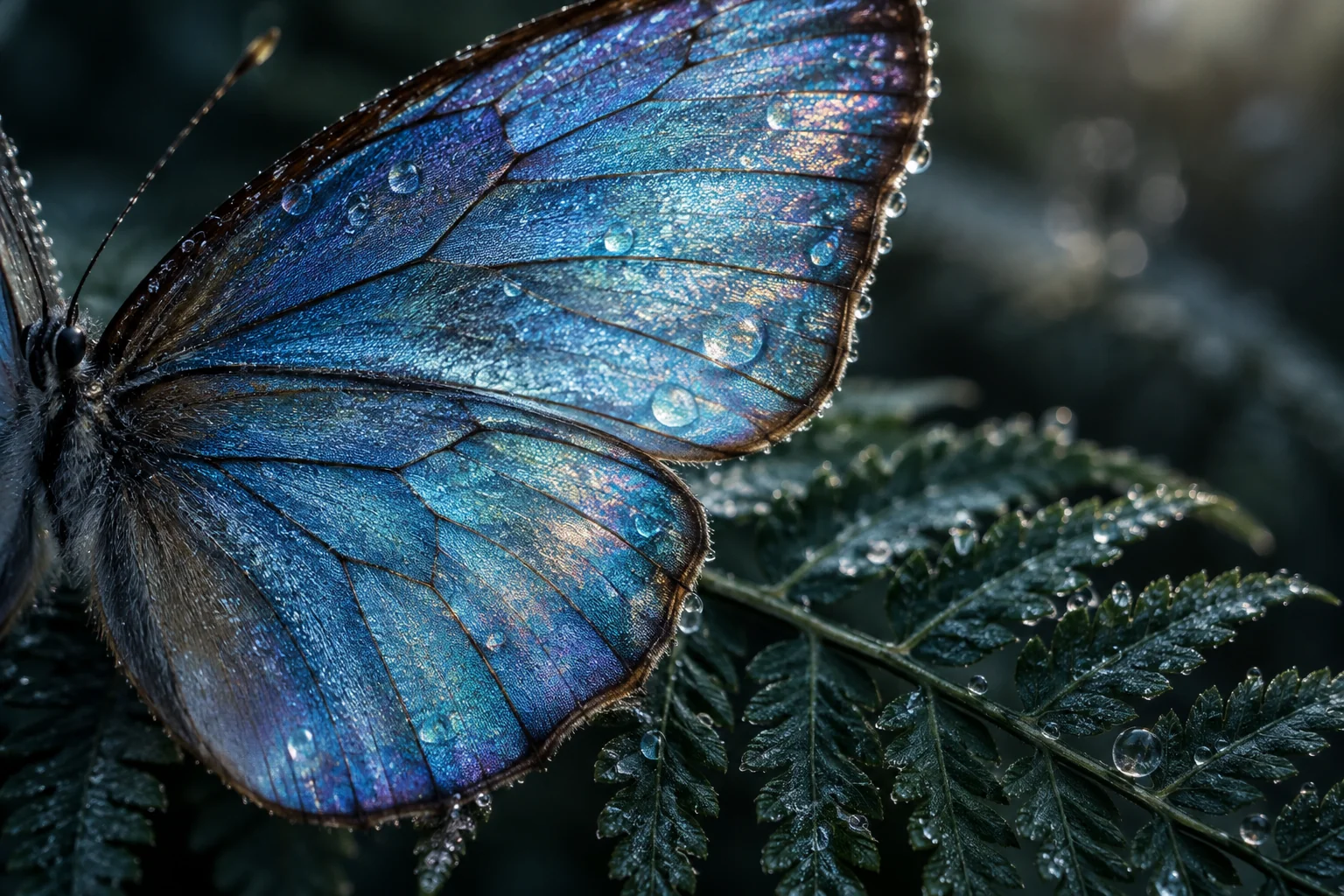
Output sizes and ratios depend on the model. Check them in the AI image generator workspace, then pick the format that fits your channel
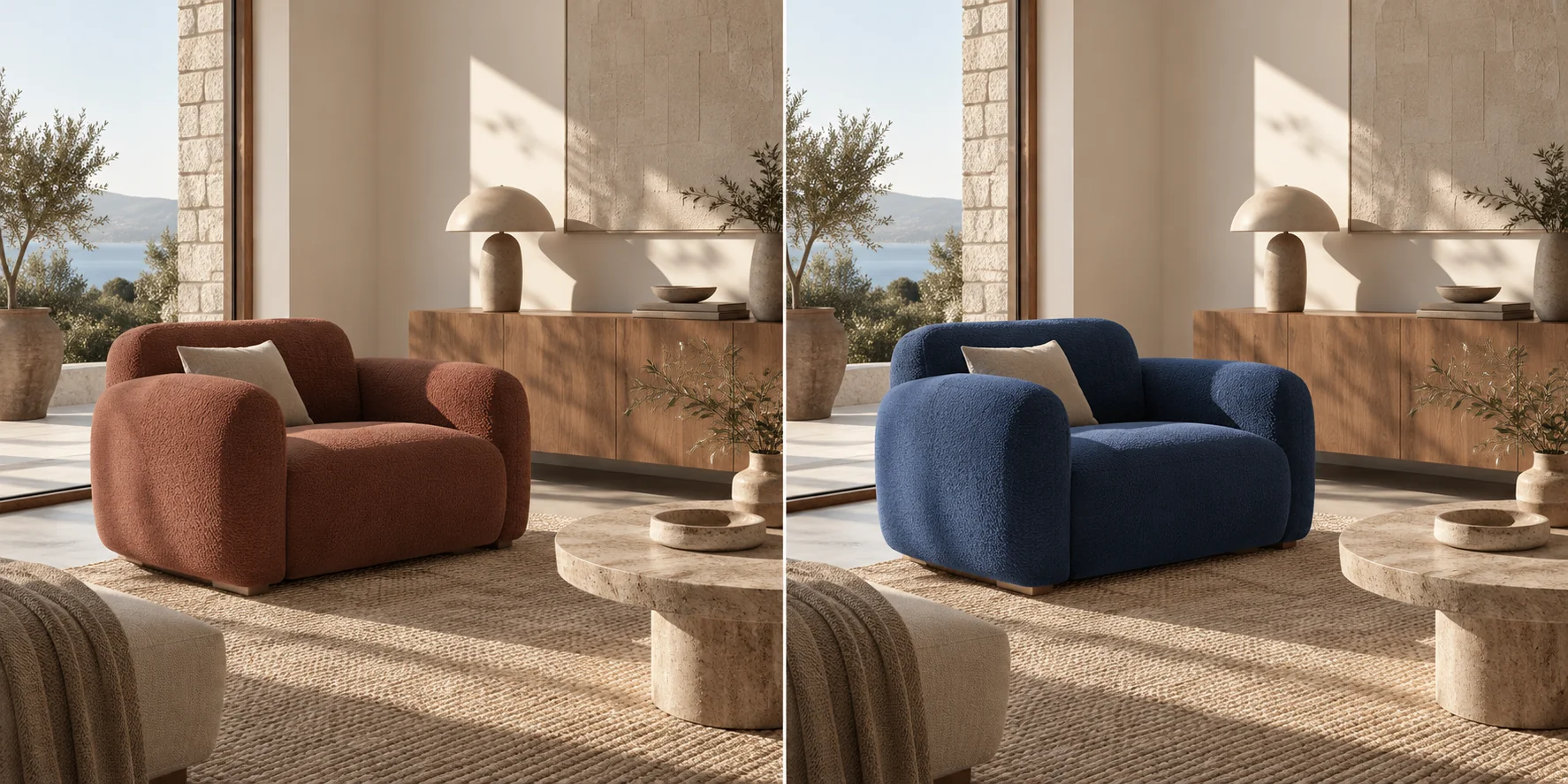
Not quite right? Adjust the wording in the AI image generator, change one detail at a time, and generate again
Open the Auteo AI image generator workspace, select a model such as GPT Image 2, set its supported options, and confirm. Review each AI image generator result, then keep it or try again
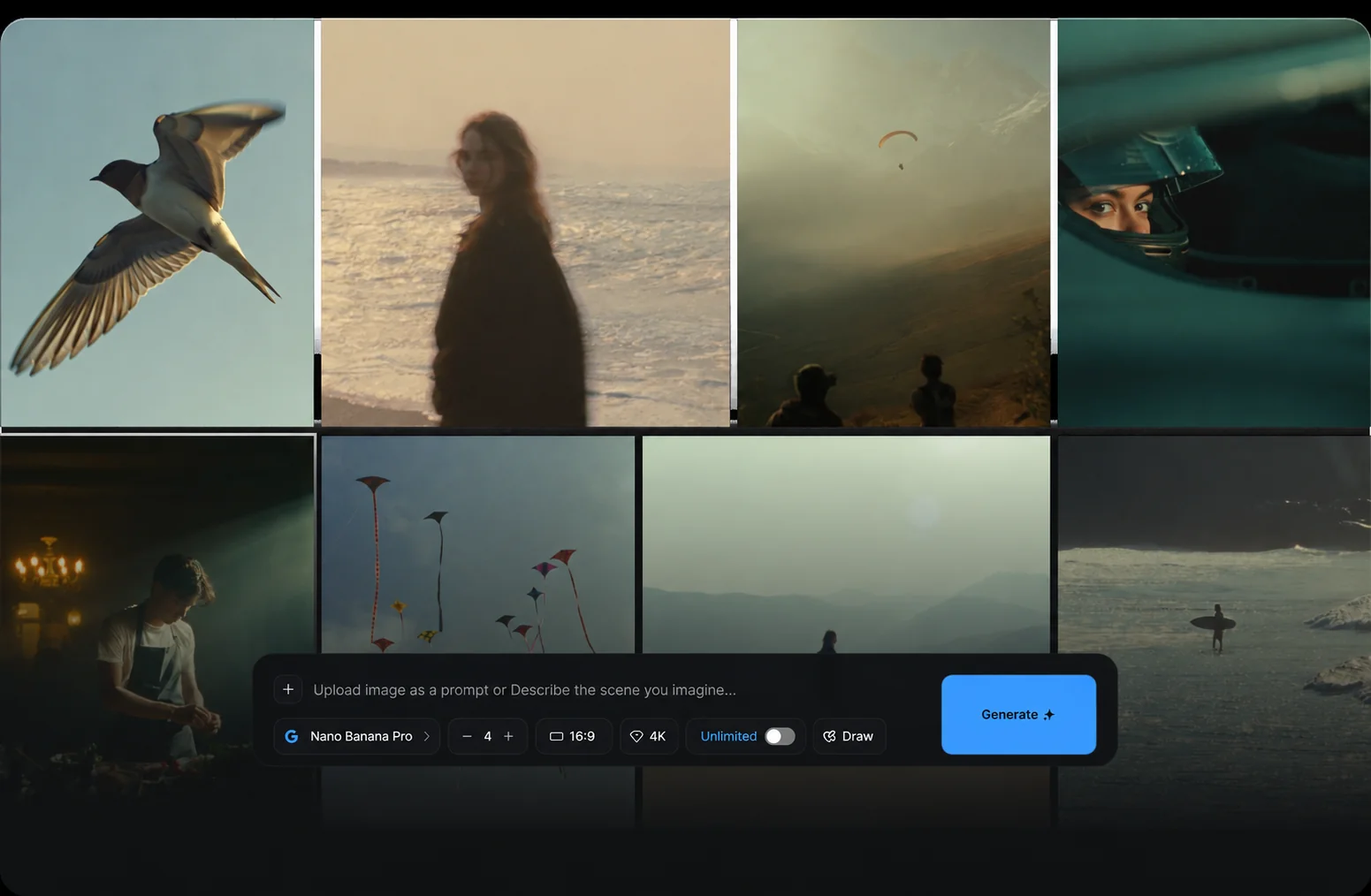
BUILT FOR EVERY CREATOR. Whether you plan a campaign, a product page, or daily posts, the Auteo AI image generator helps you explore visual ideas. Treat each AI image generator result as a draft to review
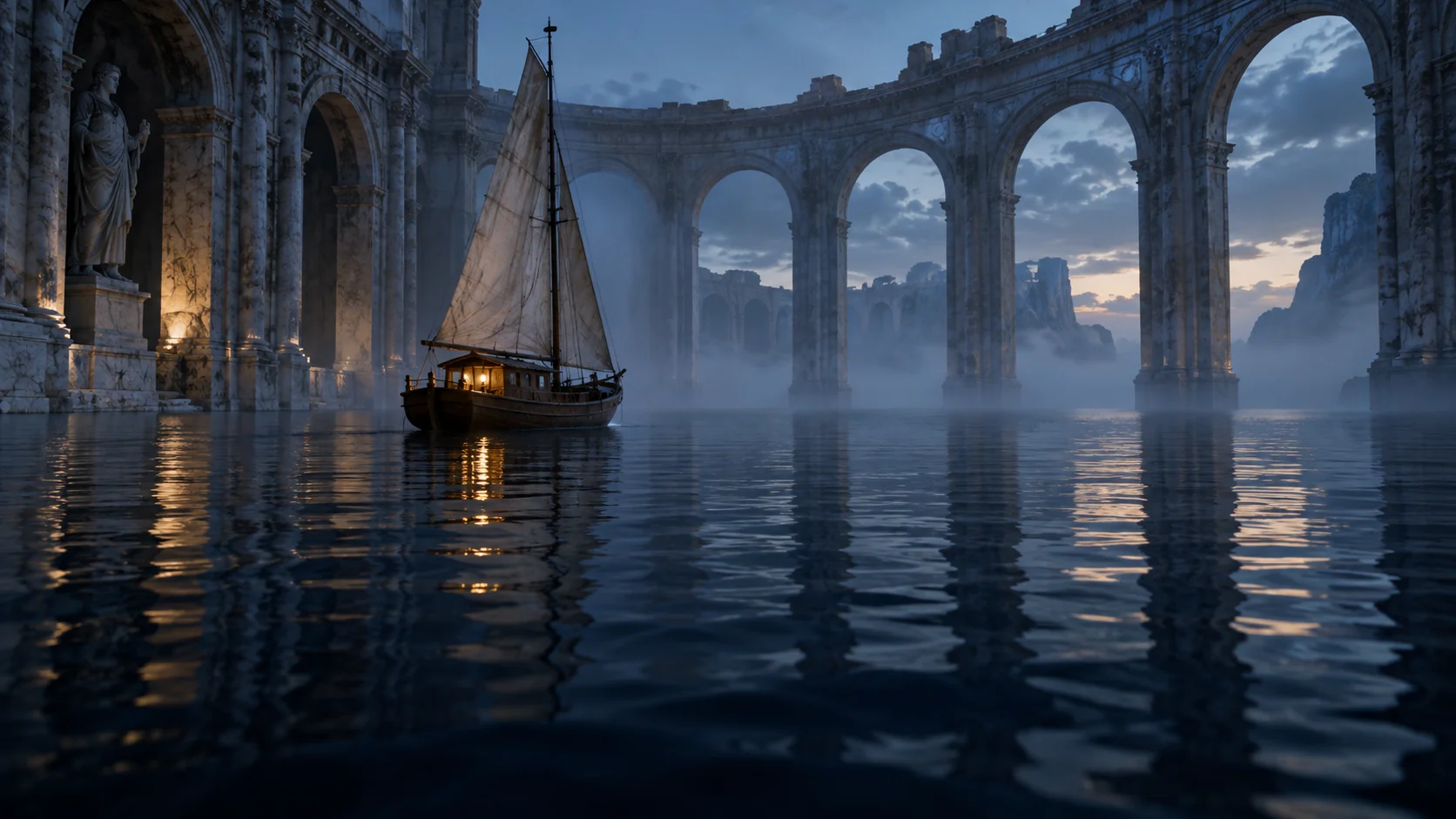
Start with a still from the AI image generator, download your favorite, and use it as a reference in the separate Auteo video workspace when you want motion
Open Auteo Video WorkspaceDESCRIBE THE LOOK. Mention lens feel, film grain, or lighting in plain words. The AI image generator interprets them as style cues, not exact camera settings
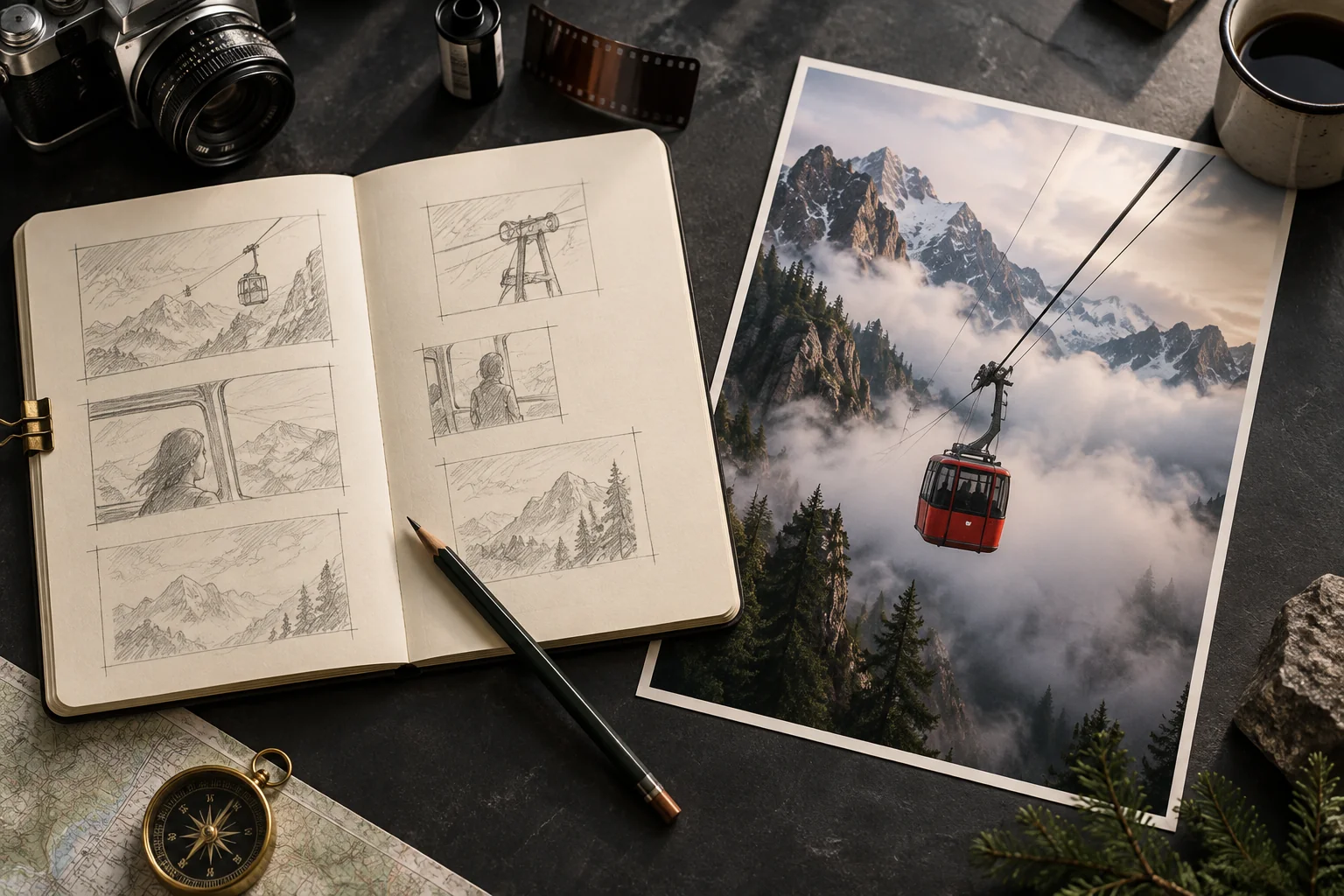
SCRIPT TO SCENE. Write subject, setting, lighting, and mood in one prompt, and the AI image generator turns that description into a still image
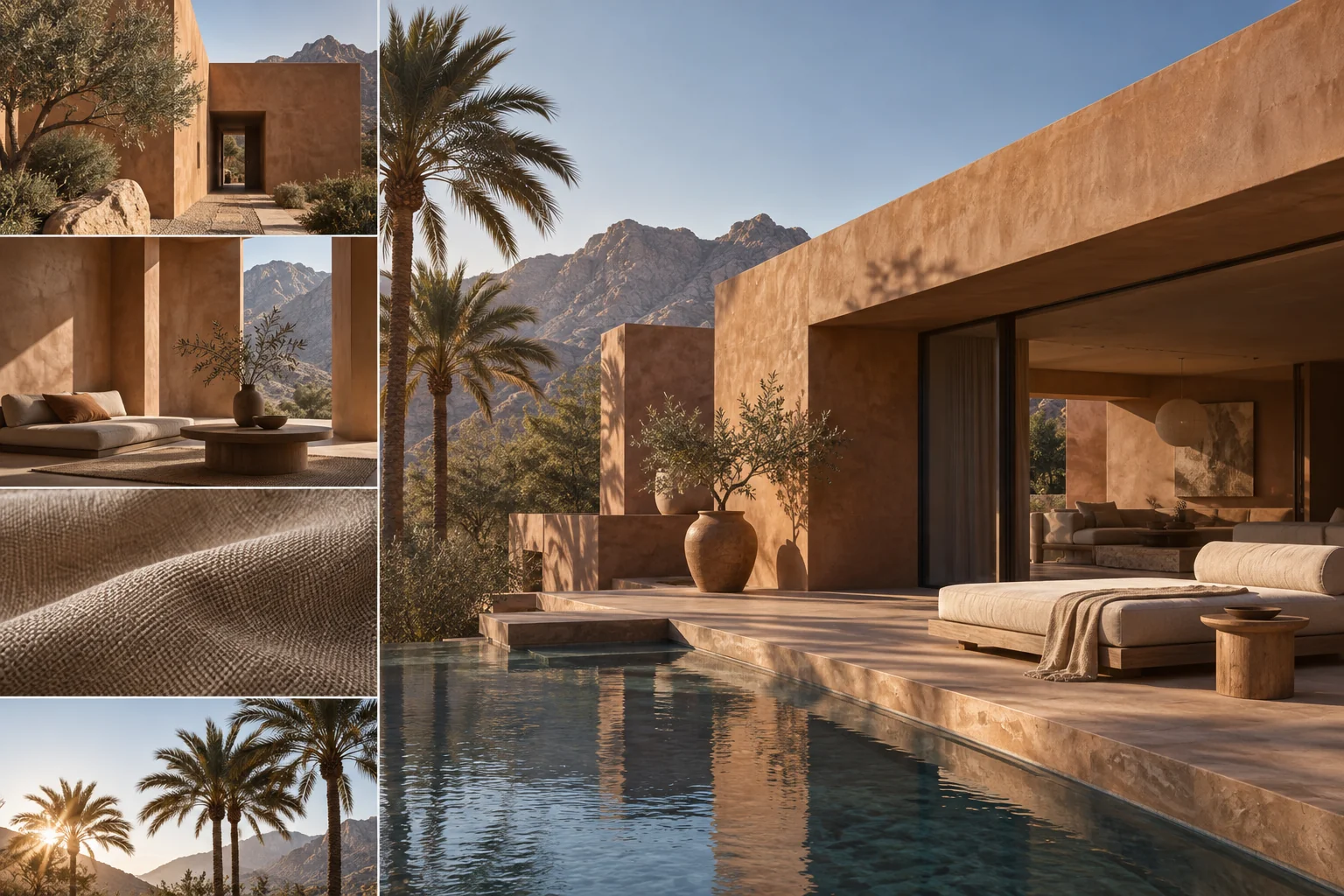
CLEAR DIRECTION. Lead with the main subject, then add style, composition, and color notes. Specific prompts give the AI image generator a better starting point
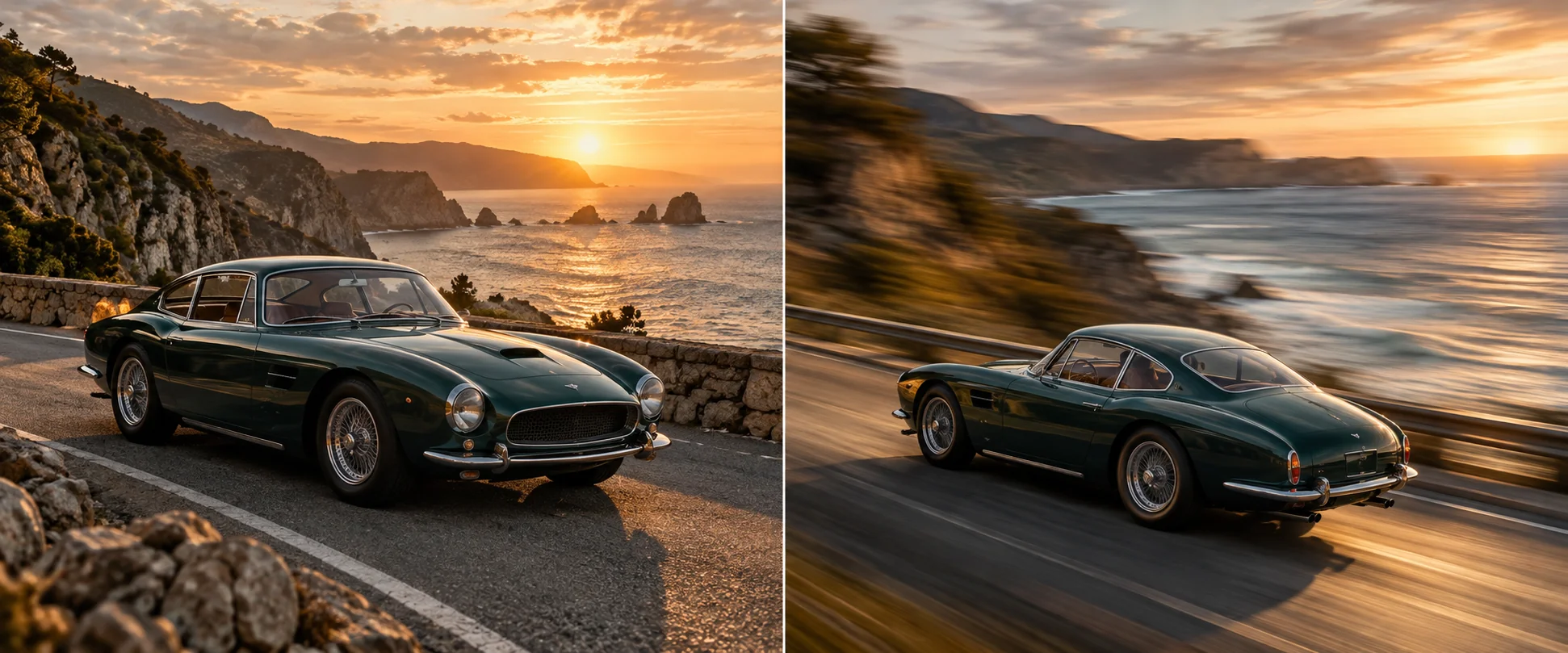
SEPARATE WORKSPACES. Create stills with the AI image generator, download the one you like, then upload it to the video workspace as a reference
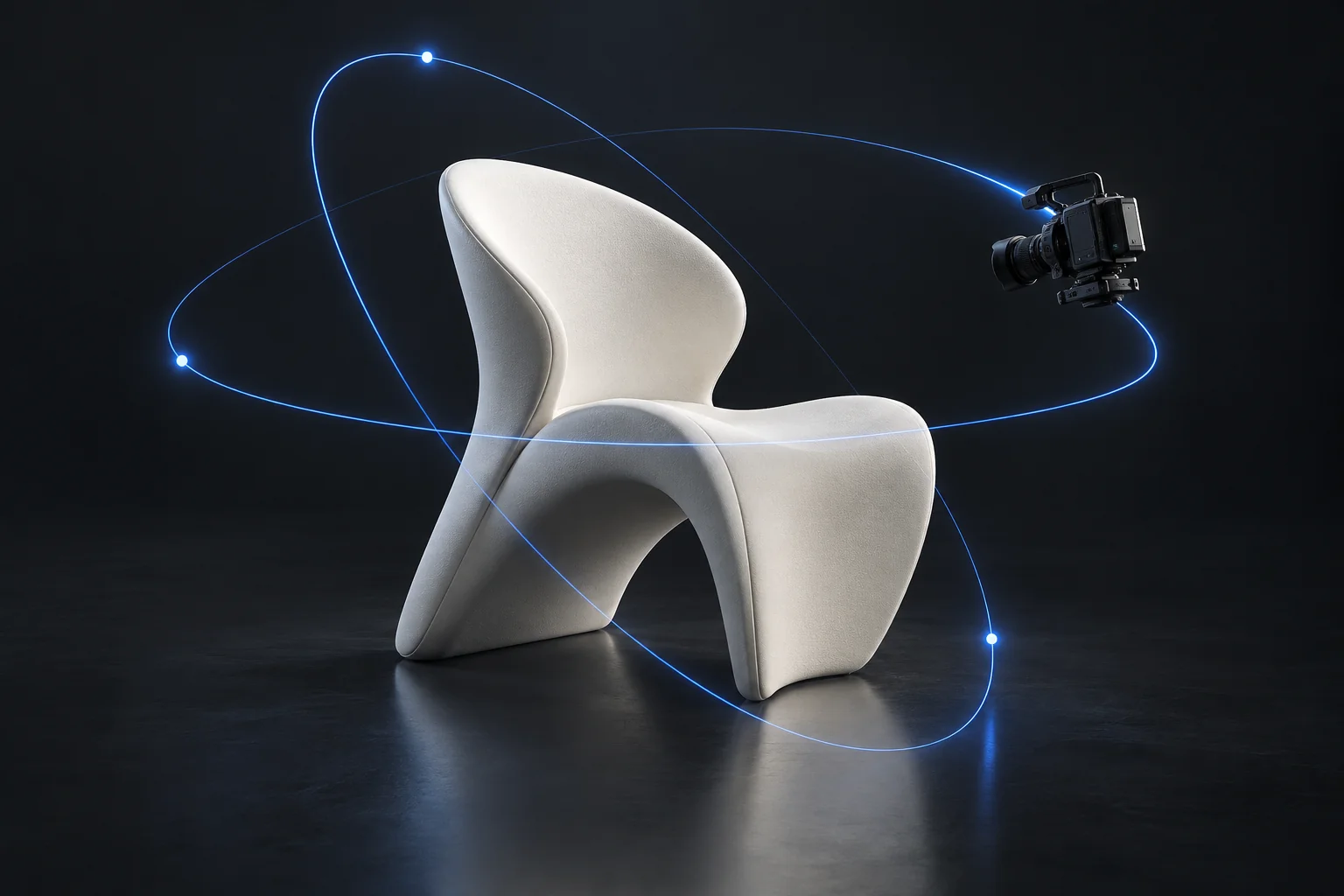
ITERATE WITH INTENT. Change one element per attempt, such as framing, light, or background, so you can see what each prompt edit actually does
Compare current Auteo plans and credit options to find your fit.
For first-time AI creators
No difference compared to monthly
Unlimited with Plus & Ultra.
For everyday AI creation
Save $120 compared to monthly
Unlimited while your subscription is active.
For ambitious AI projects
Save $360 compared to monthly
Unlimited while your subscription is active.
Practical answers about using the Auteo AI image generator, from first prompt to final download
An AI image generator creates new images from a written description. On Auteo, you type a prompt, choose a model in the workspace, and confirm generation to see the result.
Enter a prompt on this page and continue to the AI image generator workspace. Sign in if asked, review the model and settings, then confirm. Credit use depends on your current plan.
The AI image generator workspace lists the image models currently available, including GPT Image 2. Models differ in style, prompt handling, and supported settings, so run one prompt on two models and compare.
Start with the subject, then add setting, lighting, style, and composition. Concrete details usually help an AI image generator more than long lists of adjectives. Change one element at a time when refining. For example, try a red fox resting in misty pine woods, soft dawn light, watercolor style, centered wide shot.
Some models in the AI image generator handle short words better than others, but results vary. Keep requested text brief, check spelling carefully, and add critical copy in a design tool when accuracy matters.
It depends on the model you select. The AI image generator workspace shows the sizes and ratios available for that model, so check them there before you confirm a generation.
You can use an AI image generator to draft product concepts, social visuals, and storyboard frames. Review accuracy, likeness, and rights for your use, and check current plan terms before commercial publishing.
Pricing and credit use depend on the plan you choose. See the pricing shown on this page for current terms before you start using the AI image generator.
Adjust the prompt and generate again. Keep what worked, change one detail, such as lighting or background, and compare versions. The AI image generator creates a new image each time, so expect some variation.
Yes, through a separate workflow. Download the image you chose from the AI image generator, open the Auteo video workspace, and upload it as a reference. Video results depend on the model you select.