GPT Image 2.6 Prompt Guide: Formula, Text Tips and 12 Examples
Updated Nov 23, 202610 min read
Summary
GPT Image 2.6 follows prompts best when you state the subject and intended use first, then composition, style and light, any exact text in quotes, and what must not appear. Draft on Flare, which is built for fast iteration, and switch to Sunburst for the final image when texture and small details matter.
TL;DR
- Writing your first prompt: use the six-part formula (subject, intended use, composition, style and light, exact text, constraints) because OpenAI's own guide puts subject, use and layout first.
- Putting words on an image: wrap every word in quotes and say where it goes and how it looks, because GPT Image 2.6 can still misspell text you leave vague.
- Exploring many ideas quickly: start on Flare, since OpenAI built it for fast iteration and both tiers cost the same credits on Auteo.
- Making the final, detailed version: rerun the same prompt on Sunburst, which OpenAI tuned for detailed work and for consistency across edits.
- Keeping a product or face consistent: attach up to 16 reference images and name each one's role in the prompt instead of describing it again.
On this page
- What makes a good GPT Image 2.6 prompt?
- What is the GPT Image 2.6 prompt formula?
- Should you prompt Flare or Sunburst?
- How do you get text right in GPT Image 2.6?
- How do you prompt photorealistic images?
- How should you use reference images and edits?
- What are 12 GPT Image 2.6 prompts you can copy?
- What are the most common GPT Image 2.6 prompt mistakes?
- Which GPT Image 2.6 settings should you pick on Auteo?
- Where does GPT Image 2.6 still fall short?
- Got any questions left?
GPT Image 2.6 is OpenAI's image generation and editing model, released on November 4, 2026 in two tiers: Flare for fast iteration and Sunburst for detailed visual work. Both tiers read prompts the same way, so one well-built prompt carries from a quick draft to a finished image.
Every image in this guide was generated with GPT Image 2.6 from the exact prompt printed above it, with the tier and aspect ratio noted underneath. Nothing was retouched. The settings described are the ones Auteo offers for GPT Image 2.6 today.
What makes a good GPT Image 2.6 prompt?
A good GPT Image 2.6 prompt tells the model what the image is for before it describes how it looks. OpenAI's prompting guide recommends naming the subject, the intended use, the composition and any placement constraints first. "Product photo for an online store" or "poster for a night market" sets the framing, lighting and level of polish in a few words.
Three habits make the biggest difference:
- Be concrete. "A matte white ceramic dripper on a glass carafe" beats "a beautiful coffee product". Name materials, colors and light.
- Say where things go. Layout is part of the request: "the product fills about 60% of the frame, empty space at the top for a headline".
- Say what must not appear. End with exclusions such as "no text, no logos, no watermark". OpenAI's guide recommends stating them and checking the output against them.
Prompts on Auteo can be up to 20,000 characters, but length is not the goal. For a complex scene, OpenAI suggests labeled sections (scene, subject, details, constraints) instead of one long paragraph.
Order matters too. Words near the start of the prompt set the frame for everything after them, so a prompt that opens with "cinematic, moody, award-winning" asks the model to guess the subject, while one that opens with "Product photo for an online store" has already decided the camera, the background and the level of polish. Put style words after the subject, not before it.
What is the GPT Image 2.6 prompt formula?
Use six parts, in this order. Skip any part the image doesn't need.
| Part | What to write | Example |
|---|---|---|
| 1. Subject | What the image shows, with materials and colors | A matte white ceramic pour-over dripper on a glass carafe |
| 2. Intended use | Where the image will be used | Product photo for an online store listing |
| 3. Composition | Framing, placement, empty space | Square frame, product fills about 60%, space at the top for a headline |
| 4. Style and light | Medium, mood, lighting, palette | Photorealistic, soft morning window light, warm neutral tones |
| 5. Exact text | Words in quotes, position, typography | The headline "NIGHT MARKET" in large condensed capitals across the top |
| 6. Constraints | What must not appear | No text, no logos, no watermark |
As a fill-in template, the six parts look like this. Replace each bracket and delete the parts you don't need:
[Intended use]. [Subject, with materials and colors]. Composition: [framing, where the subject sits, where to leave space]. Style and light: [medium, lighting, palette]. Text, exactly as written: "[words]" [position and lettering]. Constraints: no [things that must not appear].
Here is the formula filled in, with the labels left in, which GPT Image 2.6 reads without trouble:
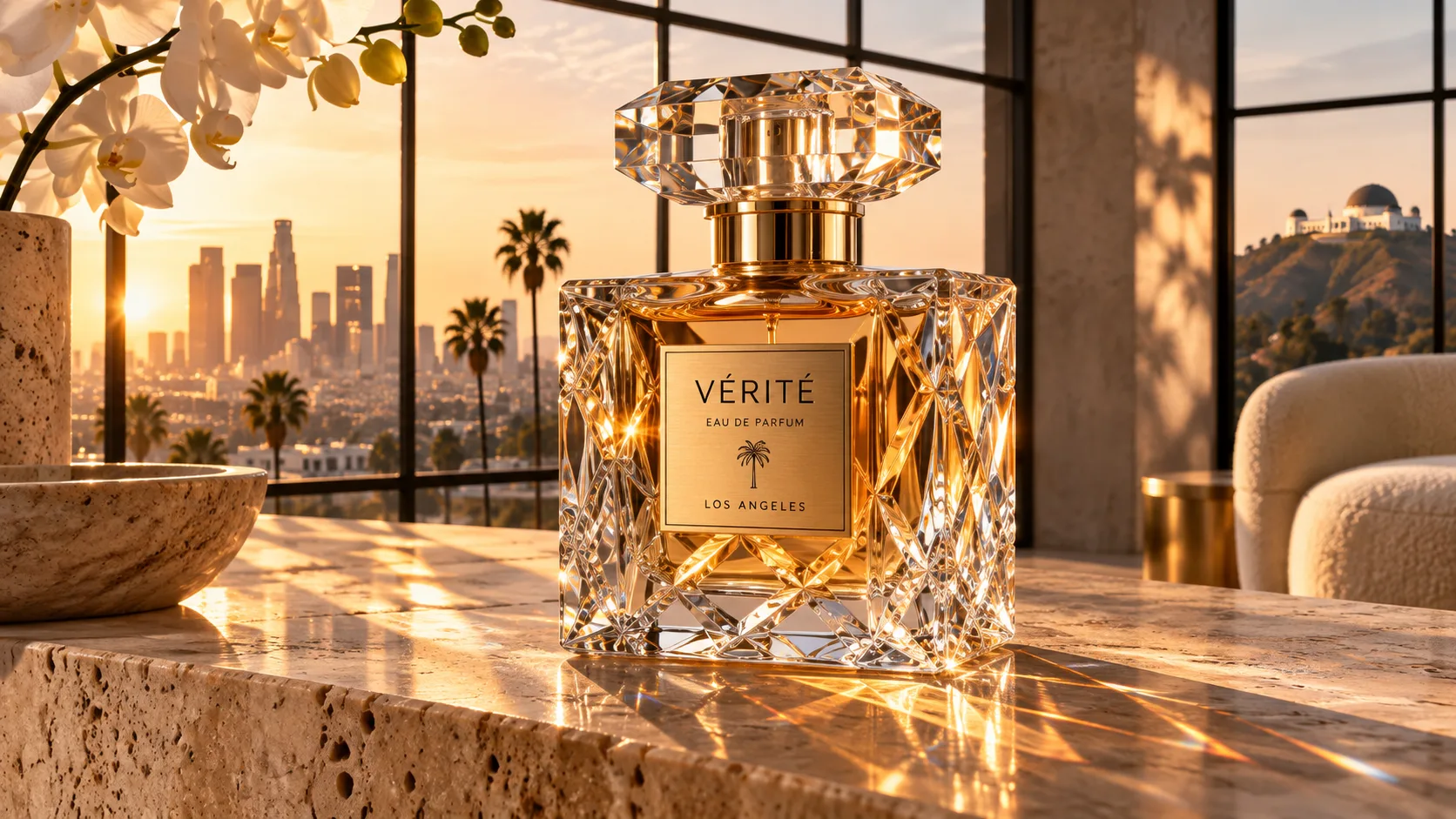
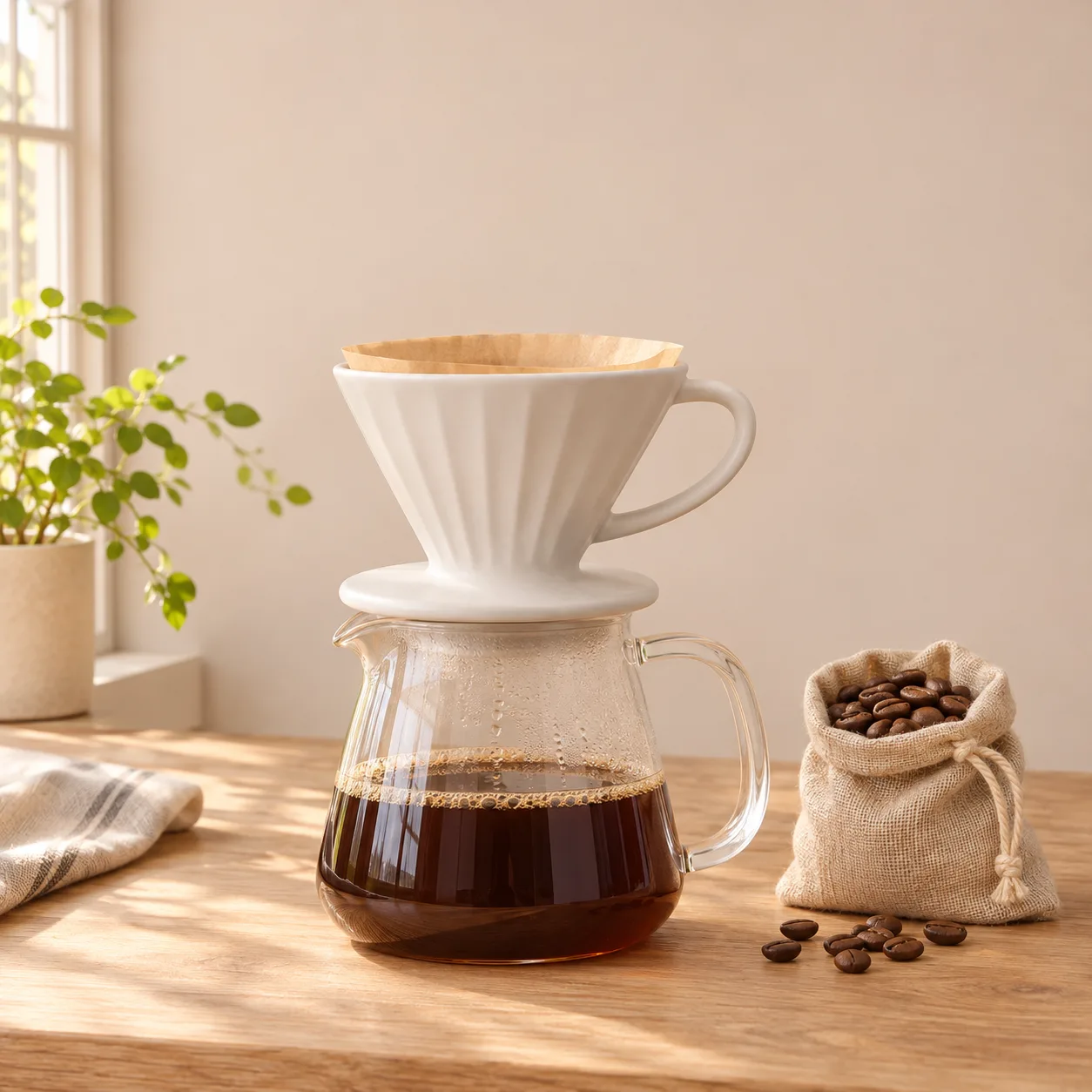 Sunburst · 1:1
Product photo for an online store listing. A matte white ceramic pour-over coffee dripper on a glass carafe, centered, with a small linen bag of coffee beans beside it. Composition: square frame, the product fills about 60% of the frame, generous empty space at the top for a headline. Style and light: photorealistic, soft morning window light from the left, pale oak counter, warm neutral tones. Constraints: no text, no logos, no watermark.
The aspect ratio is not in the prompt. On Auteo you pick it in the settings, and the empty space the prompt asked for lands where the layout needs it.
Should you prompt Flare or Sunburst?
Write one prompt for both and pick the tier by stage. OpenAI built Flare for speed: at low quality it can return an image in as little as six seconds, and OpenAI says it improves layout quality for posters and product imagery. Sunburst is tuned for detail and for keeping images consistent across edits. On Auteo both tiers cost the same credits, so the choice is about speed versus finish, not price.
Here is the same prompt run once on each tier:
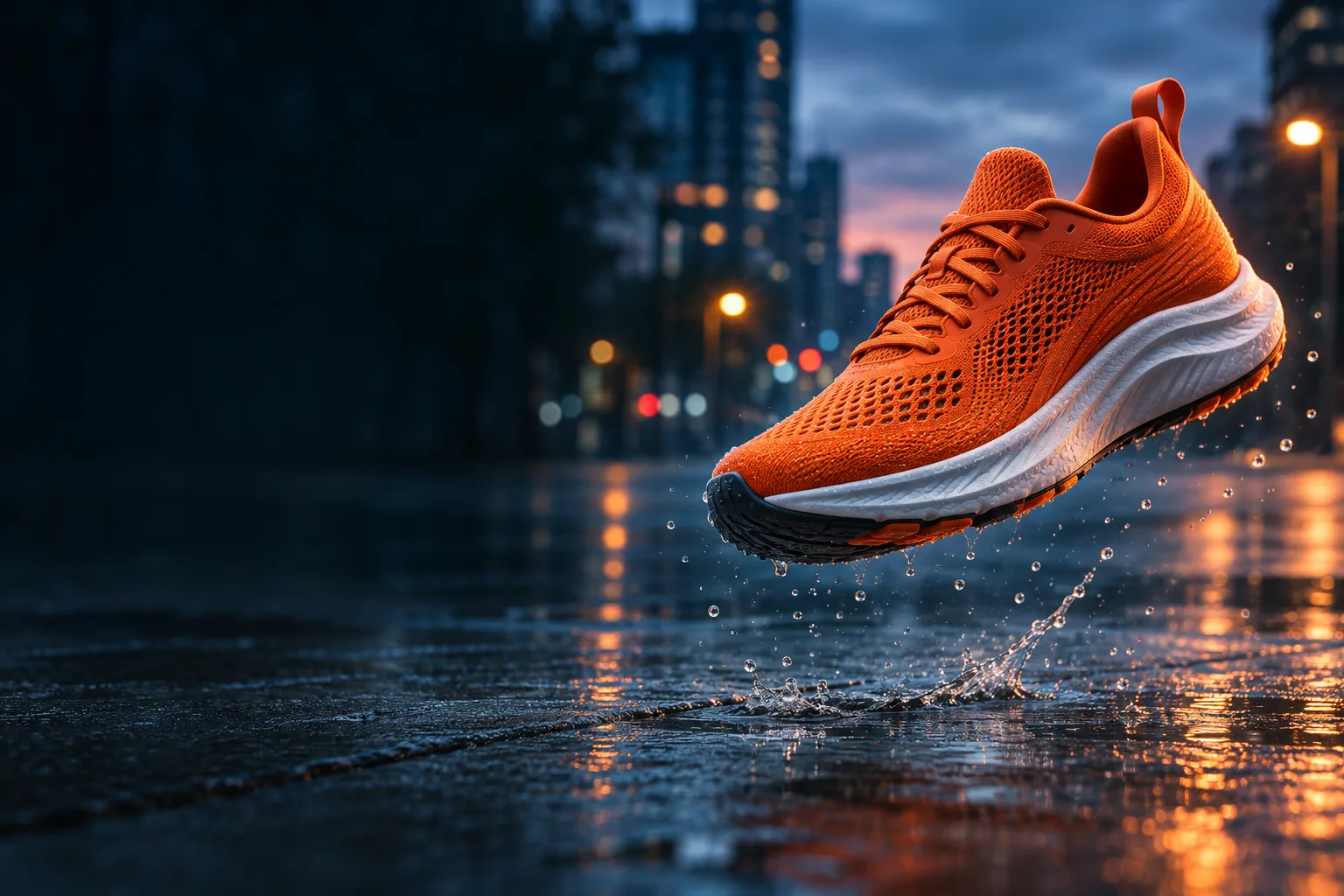 Flare · 3:2
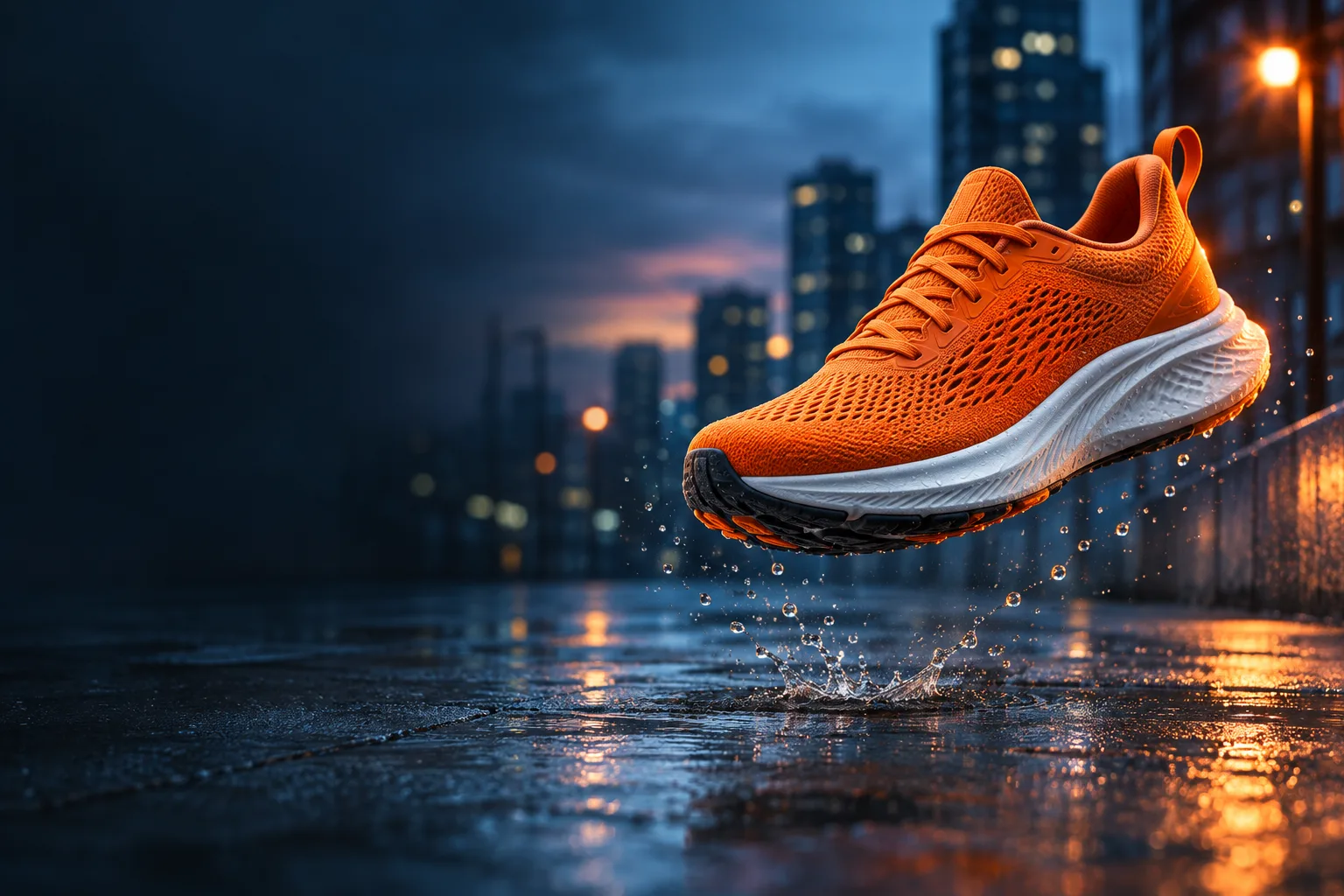 Sunburst · 3:2
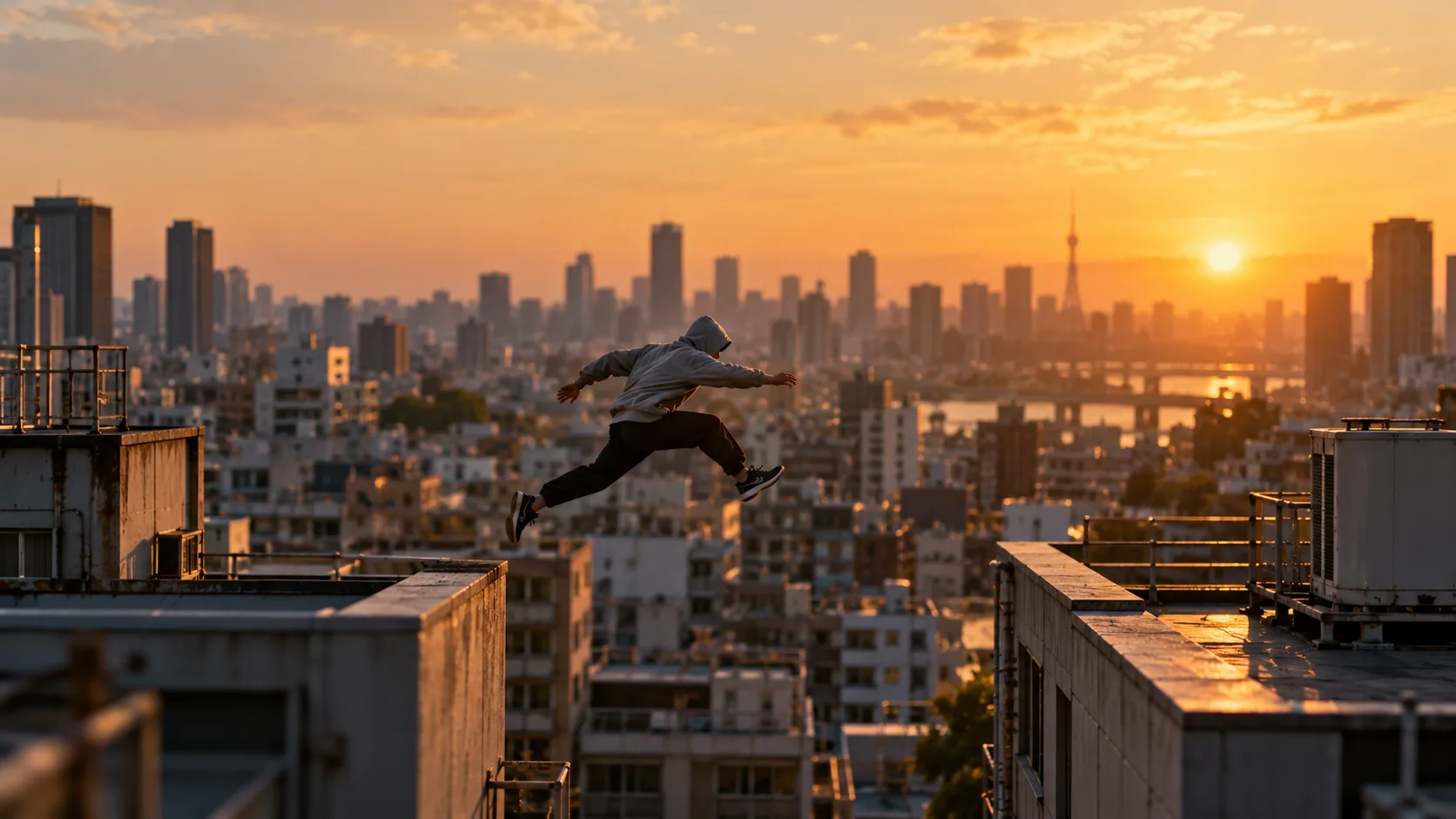
Ad image for a running shoe launch. A single orange running shoe mid-air above a wet concrete street at dusk, small water droplets frozen around the sole, city lights blurred behind it. Low camera angle, the shoe in the right third of the frame, empty dark space on the left for copy. Photorealistic, crisp detail on the knit upper and foam sole, cool blue ambient light with a warm orange rim light. No text, no logos, no watermark.
Both followed the layout: shoe on the right, dark space on the left. Sunburst framed the city behind the shoe more deliberately, while Flare got the same idea across in a looser frame. A practical rule is to draft on Flare until the composition is right, then rerun the final prompt on Sunburst.
Because the two tiers read prompts the same way, you never need two versions of a prompt. Fix the wording on Flare, where each try is quick, and switch tiers only when the image is ready to finish. If a detail you care about, such as a texture or a small object, keeps coming out soft on Flare, that is usually the signal to move to Sunburst rather than to keep rewriting.
How do you get text right in GPT Image 2.6?
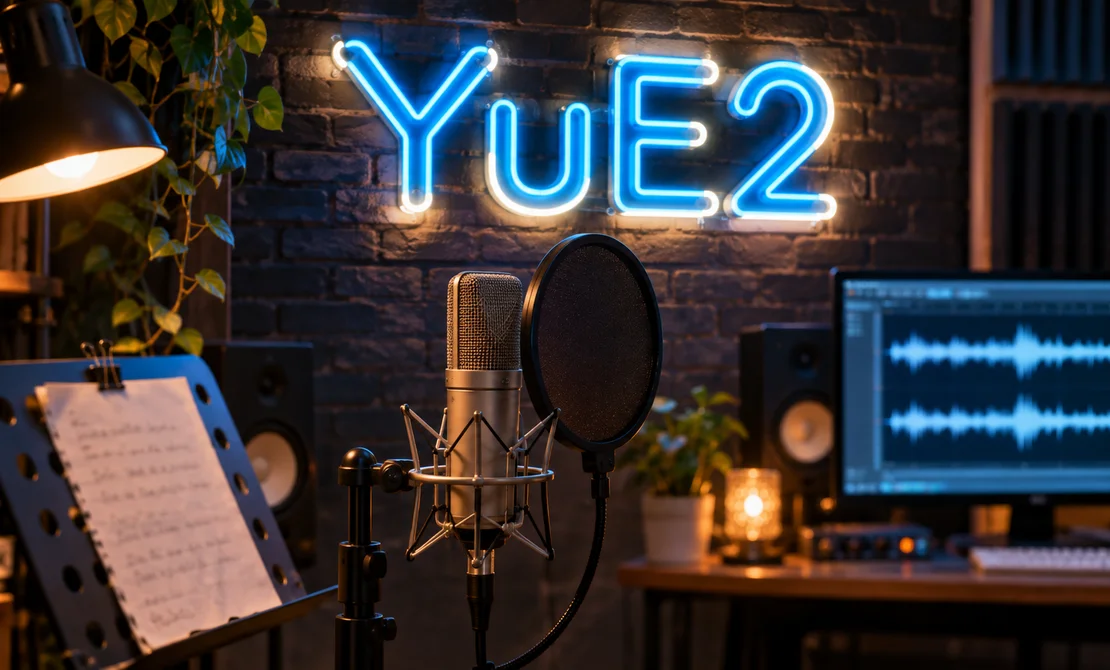
Put every word that must appear in quotes, then say where it goes and what the lettering looks like. OpenAI's guide gives the same advice and adds two more: ask for no extra text, and spell unusual words or brand names letter by letter. Keep text short. A headline and one supporting line render far more reliably than a paragraph.
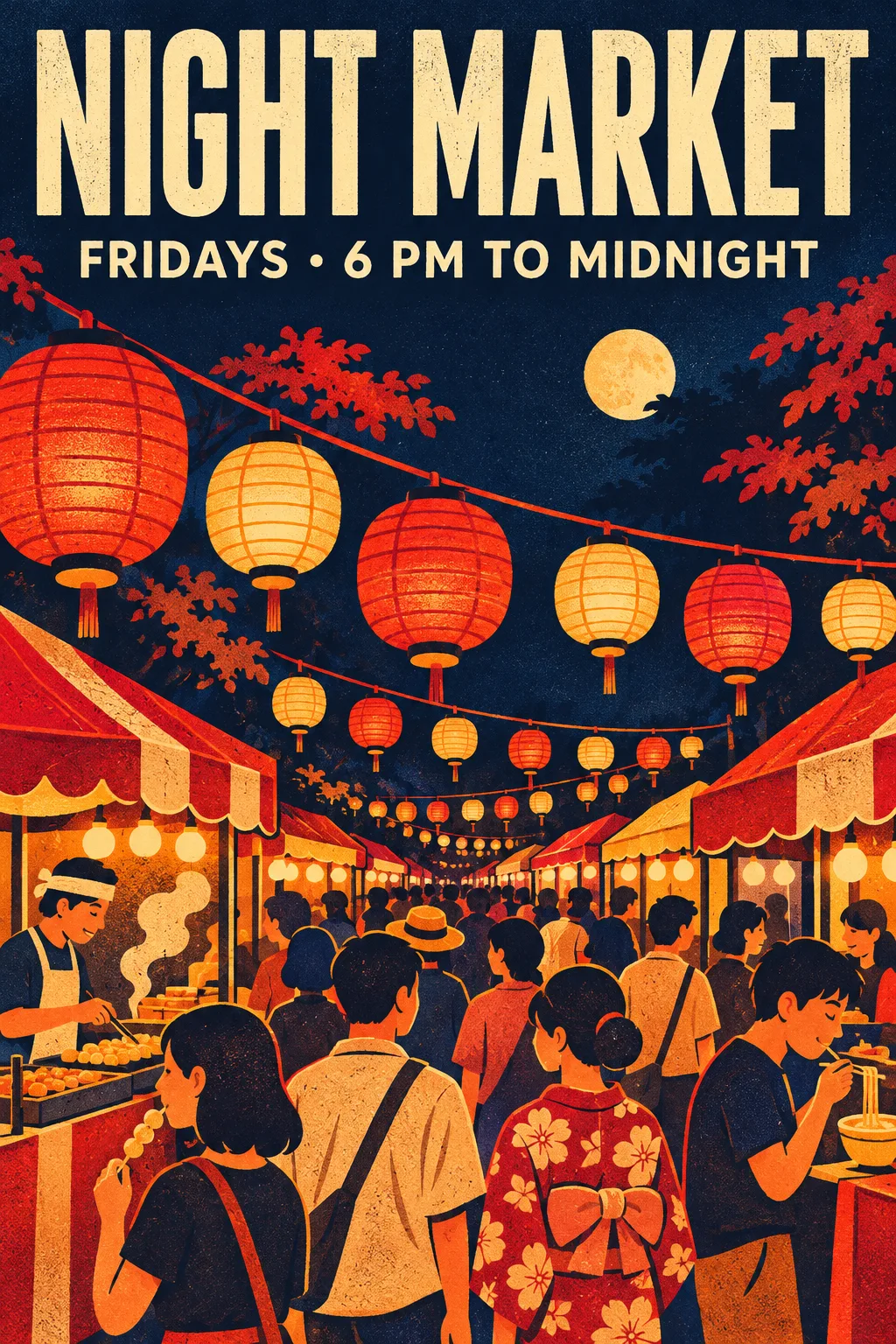 Sunburst · 2:3
Poster for a summer night market. Bold flat illustration of paper lanterns strung over a crowded street of food stalls at night, warm red, amber and deep navy palette, screen-print texture. Text, exactly as written: the headline "NIGHT MARKET" in large condensed sans-serif capitals across the top, and below it the smaller line "FRIDAYS · 6 PM TO MIDNIGHT". Keep all other areas free of text. No extra words, no logos, no watermark.
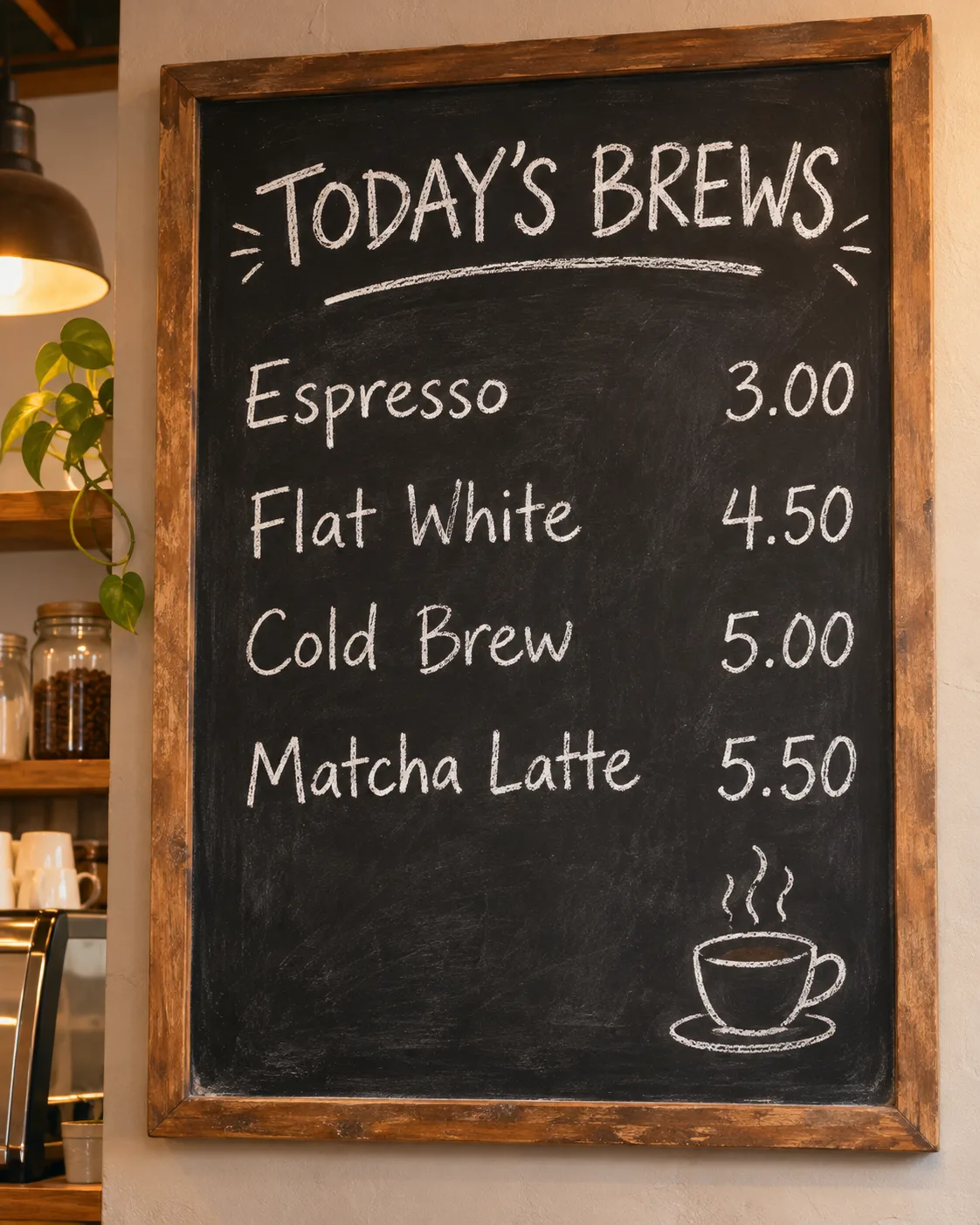
For lists, give every line in order and say how to align it. This menu came out with all four prices in the right place:
 Flare · 4:5
Chalkboard menu sign photographed on the wall of a small neighborhood cafe. The title "TODAY'S BREWS" at the top in hand-lettered white chalk, then four lines, each with a drink and a price, names aligned left and prices aligned right: "Espresso 3.00", "Flat White 4.50", "Cold Brew 5.00", "Matcha Latte 5.50". A small chalk drawing of a coffee cup in the bottom corner. Photorealistic, warm indoor light. No other text.
Typography can still slip, so proofread every word before you publish. If one letter is off, regenerate rather than rewriting the whole prompt.
How do you prompt photorealistic images?
Ask for a photograph explicitly, then describe what a photographer would control: framing, light direction, materials and texture. OpenAI's guide notes that camera details such as "85mm at f/2" are cues for the look, not a guarantee of an exact lens simulation, so pair them with plain descriptions.
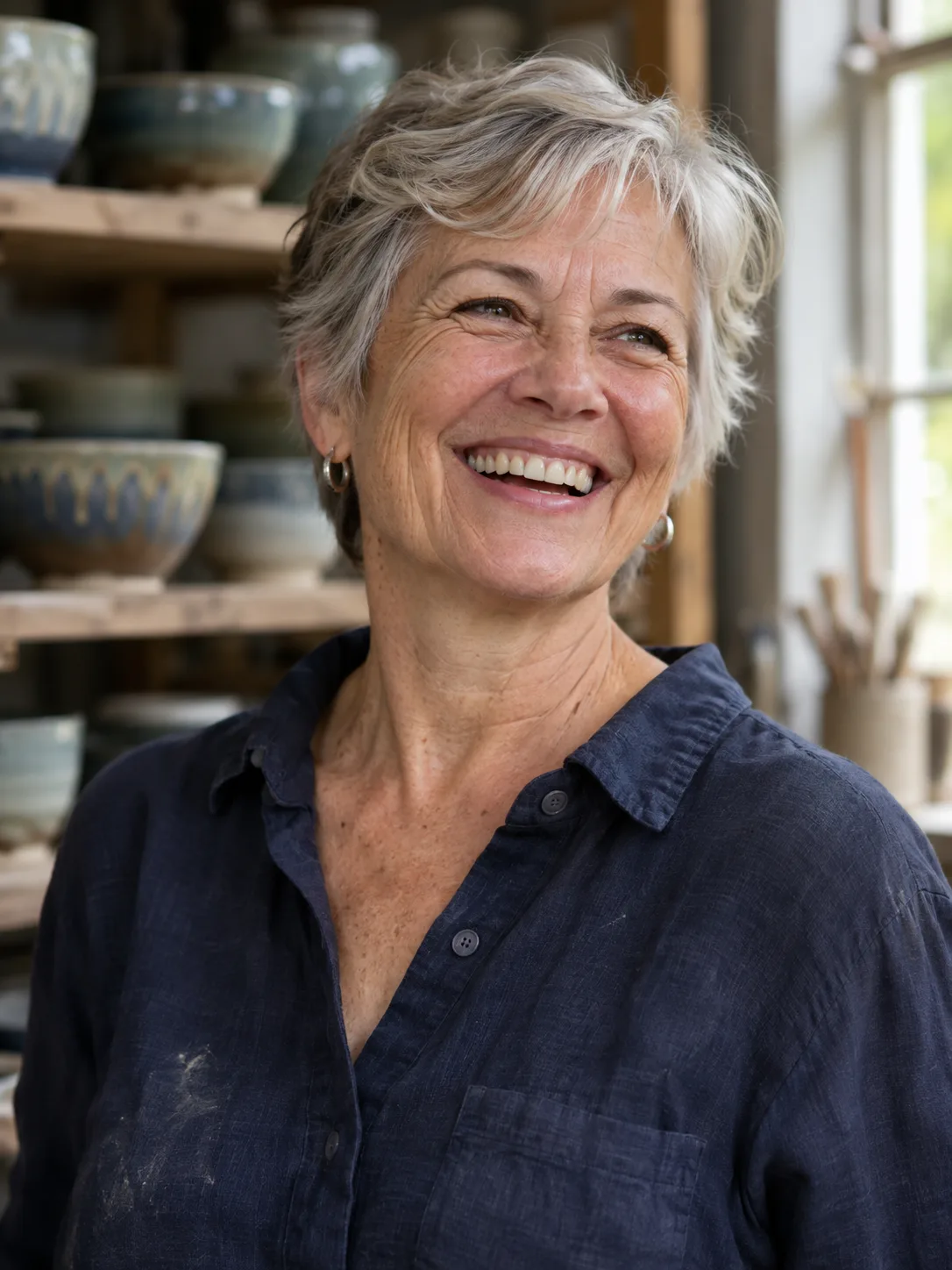 Sunburst · 3:4
Photorealistic portrait photograph of a woman in her sixties with short silver hair and a navy linen shirt, laughing as she looks just past the camera, standing in her pottery studio with shelves of glazed bowls softly out of focus behind her. Natural window light from the right, real skin texture with fine lines, shot like an 85mm lens at f/2. Vertical framing from the chest up. No text, no watermark.
Details such as "real skin texture with fine lines" keep faces from looking airbrushed, and naming the light source gives the image a consistent direction of shadow.
The same approach works for products and places. Name the surface the product sits on, where the light comes from and how hard it is ("hard afternoon sunlight with crisp leaf shadows" reads very differently from "soft overcast light"), and say "photorealistic" once rather than stacking words like "ultra realistic, 8K, hyper detailed", which add nothing the model can act on.
How should you use reference images and edits?
Use reference images for anything that must match exactly, such as a product, a face, a logo or a style, instead of describing it in words. On Auteo you can attach up to 16 reference images in PNG, JPEG or WebP. OpenAI's guide recommends giving each input a number and a role. Here the pour-over photo from the formula section went in as Image 1:
Before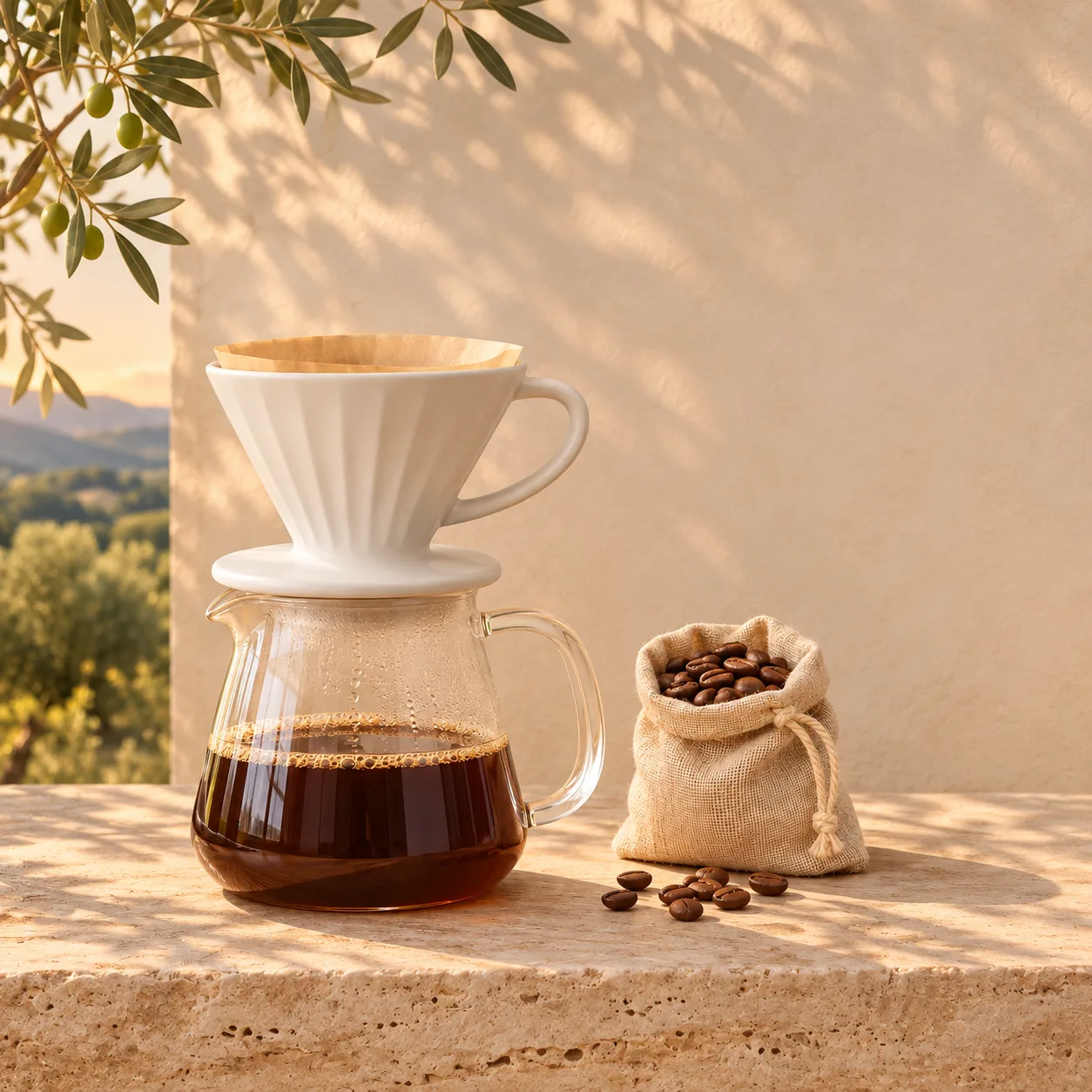 After · Sunburst
Image 1 is the product: keep the dripper, the glass carafe and the linen coffee bag exactly as they are, with the same shapes, colors and proportions. Move them onto a travertine stone ledge outdoors in soft late-afternoon light with gentle olive-leaf shadows, product centered, with empty space on the right for text. No other products, no extra text.
The dripper, carafe and bag kept their shapes and colors; only the setting and light changed, and the empty space on the right appeared where the prompt asked for it.
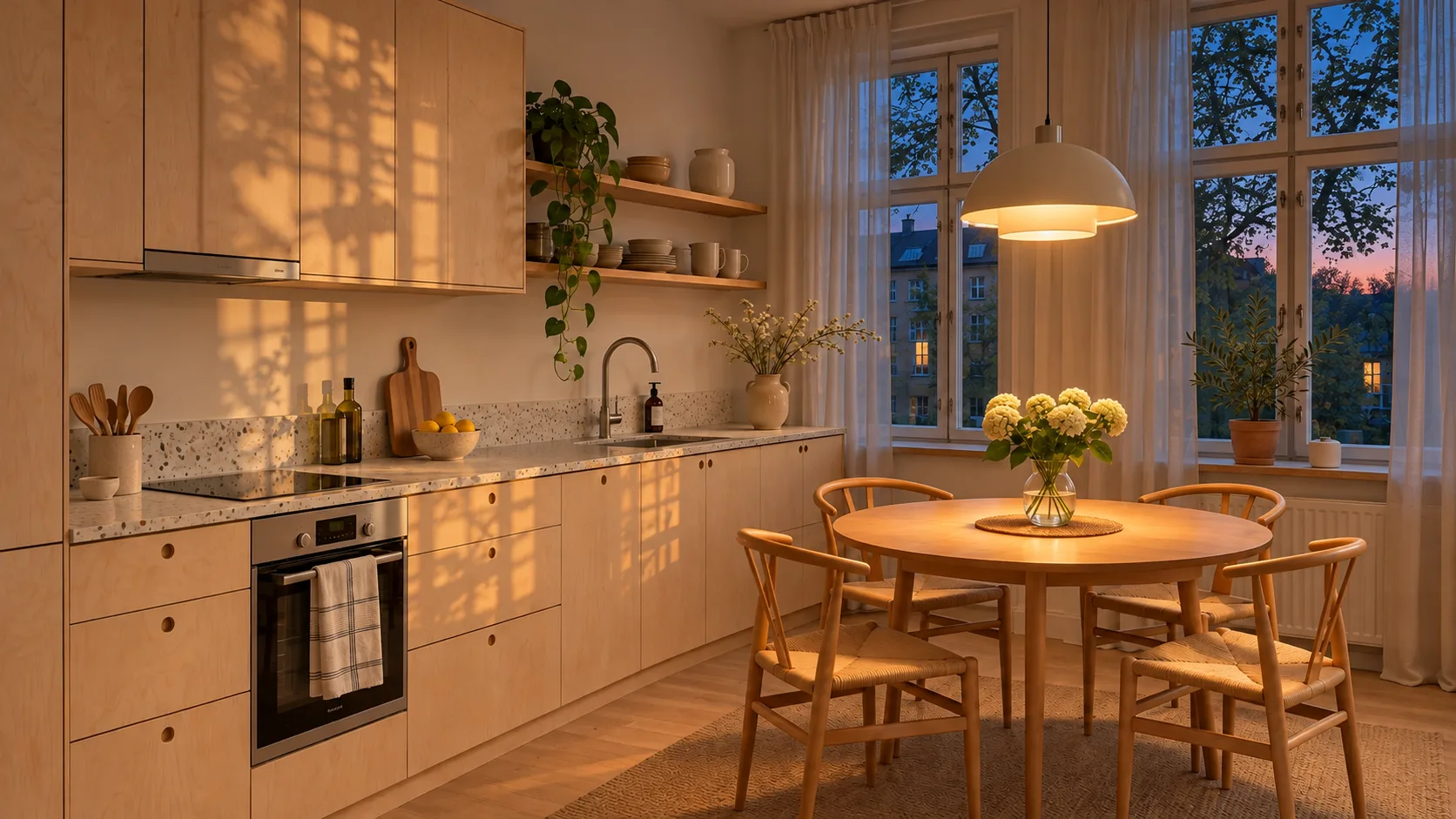
For edits, say what should change and what must stay the same. Ask for one change at a time and repeat the details to preserve. This edit started from the kitchen photo in the examples below:
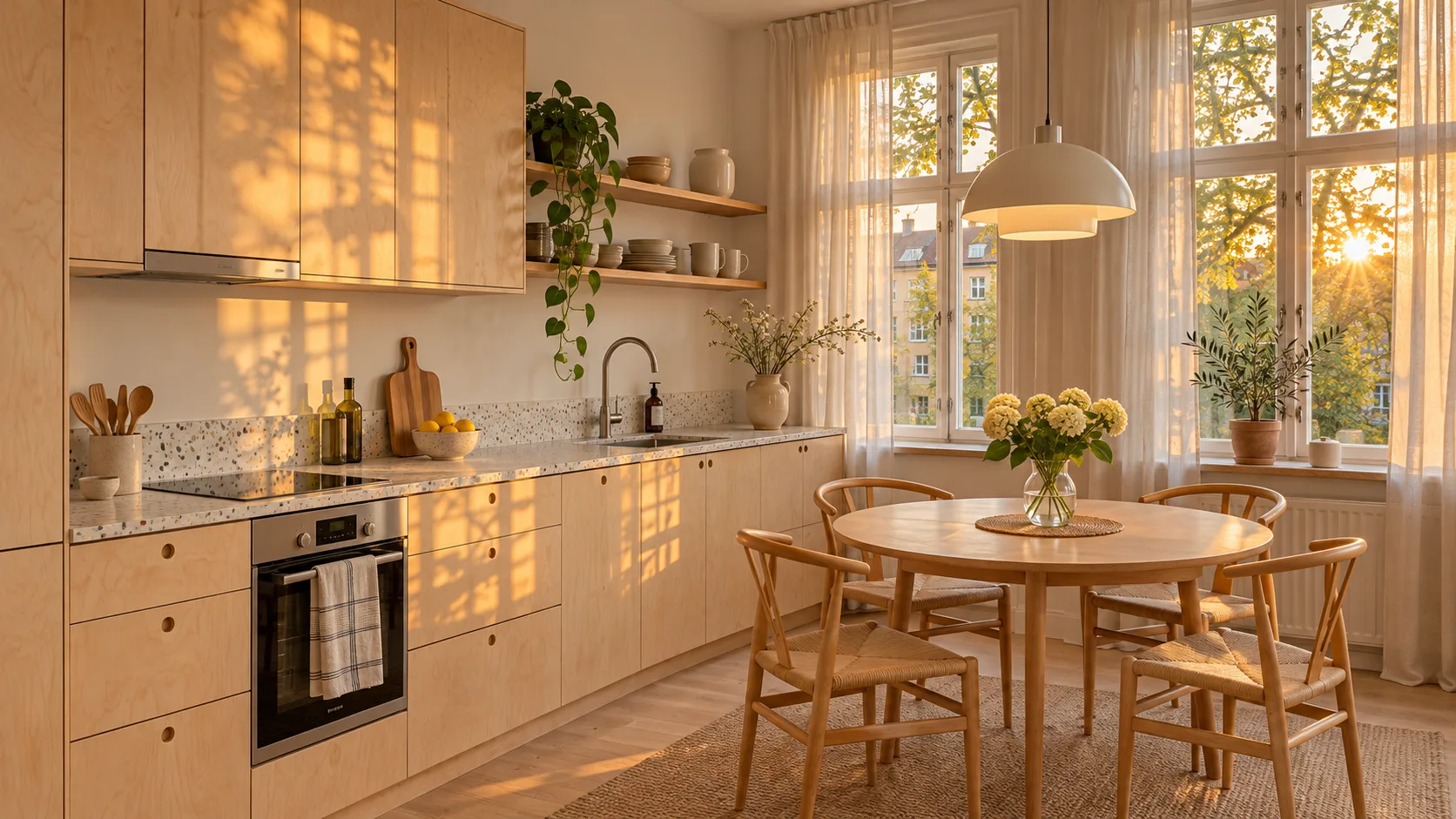 Before
 After · Flare
Change only the light: make it a blue evening just after sunset outside the windows and switch on the pendant lamp so it glows warm over the table. Keep the cabinets, countertop, table, chairs, plants and camera angle exactly as they are. No new objects, no text.
The cabinets, table, chairs and camera angle stayed put while the time of day changed. Look closely and some warm patches of sunlight survived on the cabinets, which is why it pays to check edited images for leftovers from the original lighting.
If an edit starts to drift, restate the critical constraints instead of adding new ones. OpenAI notes that recurring characters and brand elements can still shift from one image to the next, so reuse the same references every time.
What are 12 GPT Image 2.6 prompts you can copy?
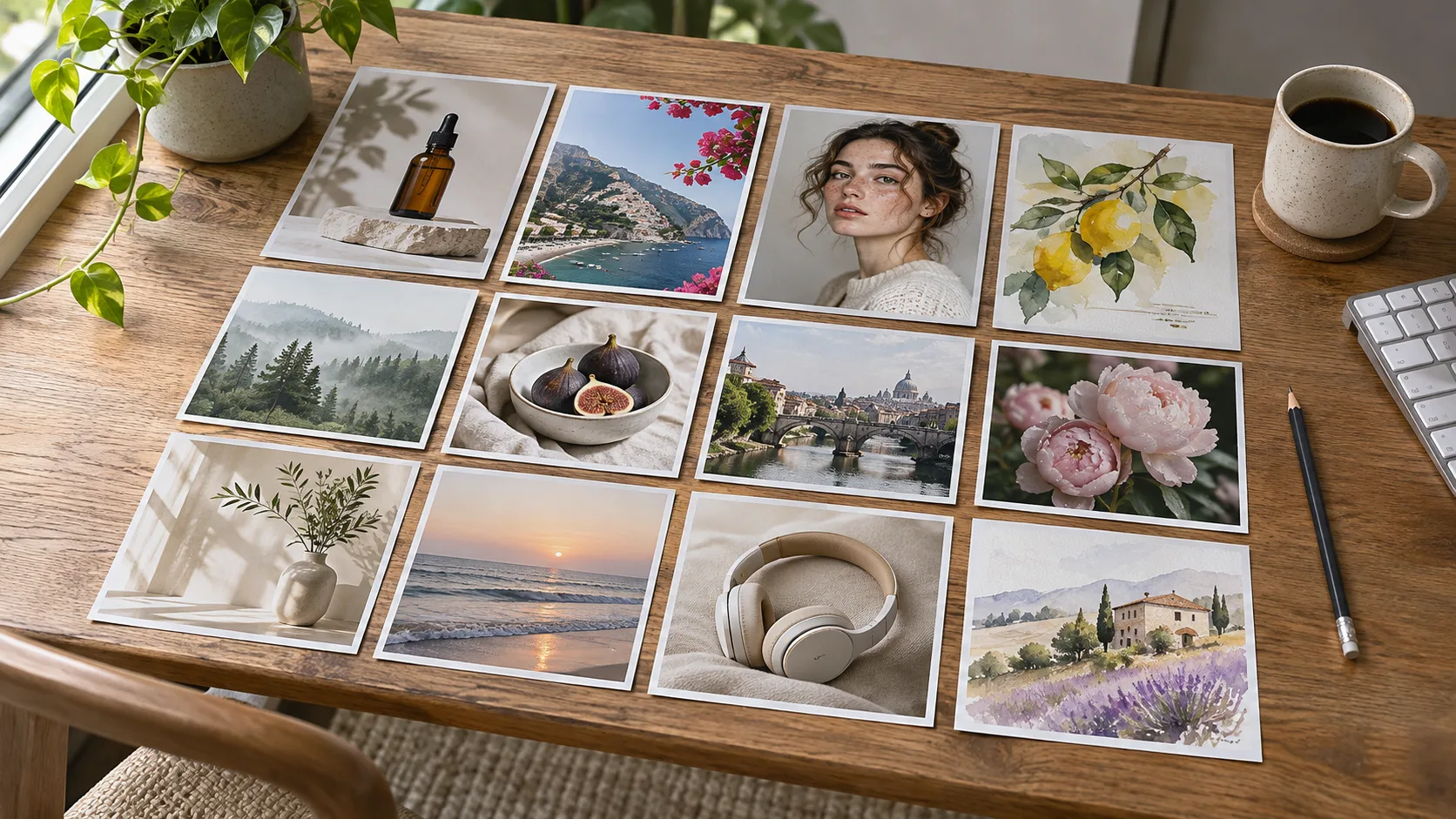
Each one is shown with the image it produced. Paste any of them into Auteo and change the subject to your own.
When you adapt one, keep its skeleton and swap the specifics: the intended use in the first sentence, the layout instruction, and the exclusions at the end are what make these prompts reliable. Change the product, the colors or the words in quotes, then pick the aspect ratio that matches where the image will be posted.
Product and social
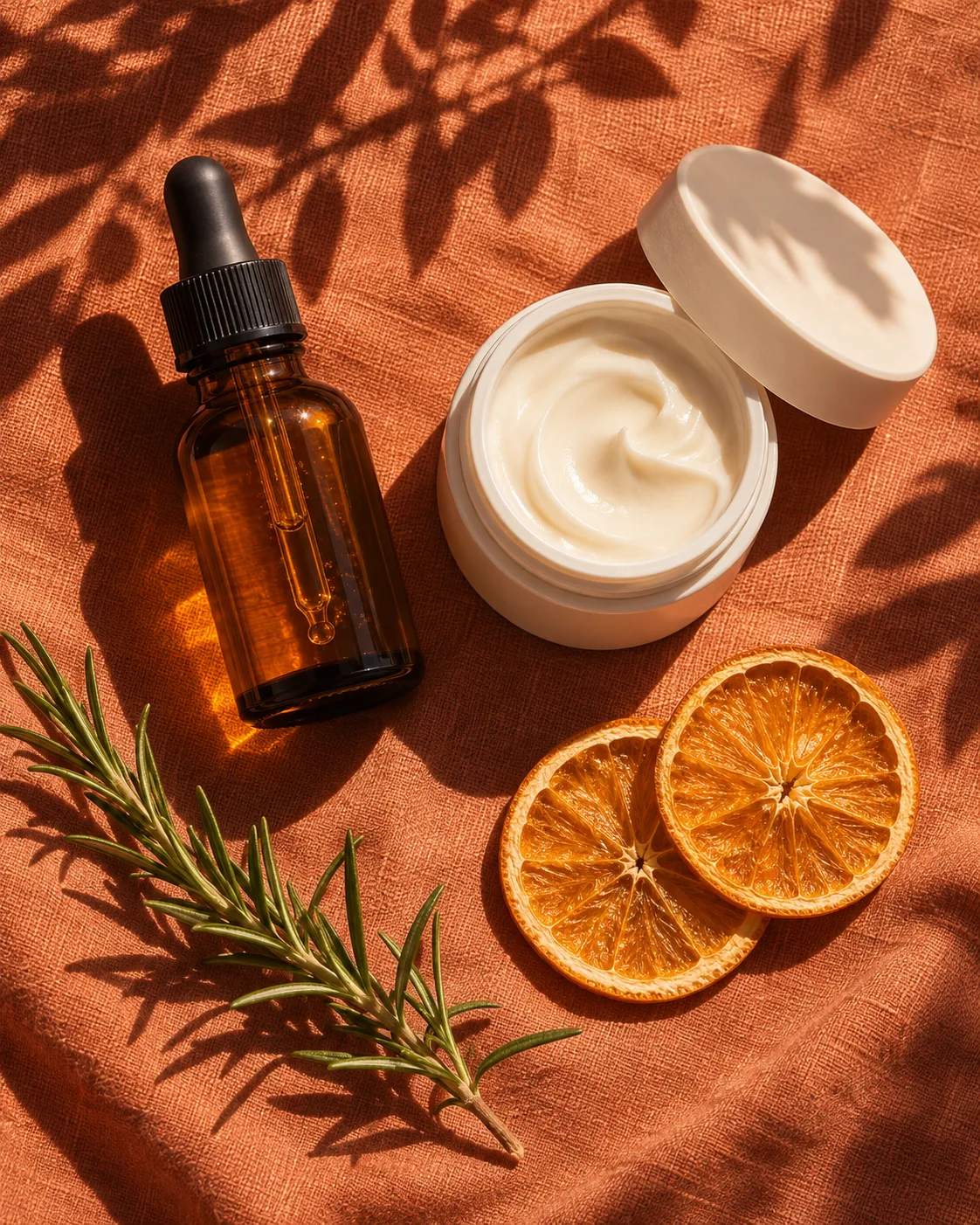 Sunburst · 4:5
Overhead flat lay for a skincare brand's social post: an amber glass dropper bottle, a white jar with its lid off showing a creamy texture, two dried orange slices and a sprig of rosemary on a terracotta-colored linen background. Hard afternoon sunlight with crisp leaf shadows across the scene. Photorealistic, minimal, warm palette. Unlabeled packaging, no text, no logos.
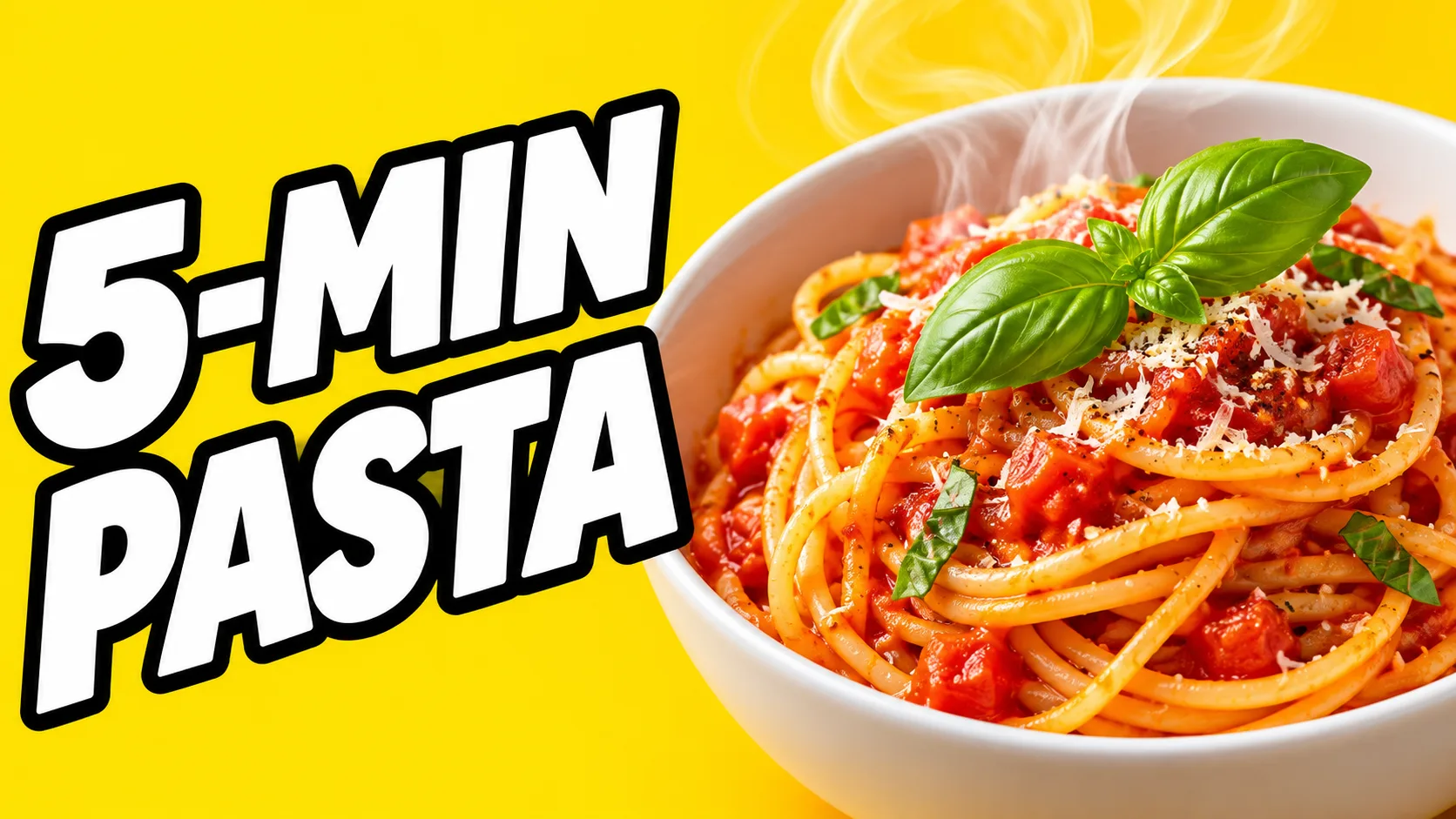 Flare · 16:9
YouTube thumbnail for a cooking video. A steaming bowl of spaghetti with tomato sauce and basil on the right half, shot close and bright. On the left half, big bold text "5-MIN PASTA" in thick white letters with a black outline, slightly tilted. Clean yellow background, high contrast, punchy colors. No other text, no logos.
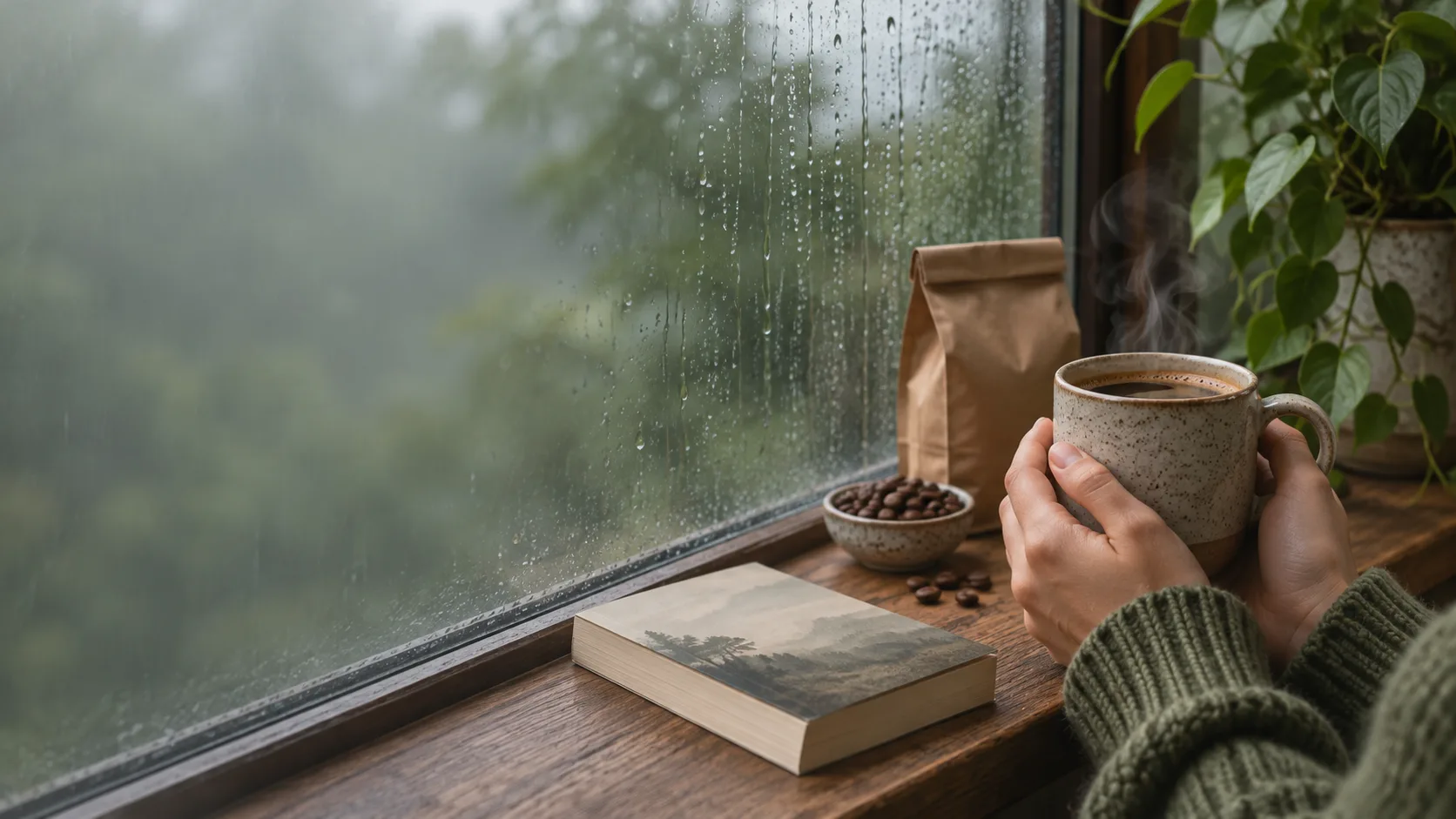 Sunburst · 16:9
Lifestyle photo for a coffee subscription's landing page: a person's hands holding a speckled ceramic mug by a rainy window, a paperback book and a small bag of coffee on the sill. Soft overcast light, muted greens and browns, shallow depth of field. Wide 16:9 framing with empty space on the left for a headline. No text, no logos.
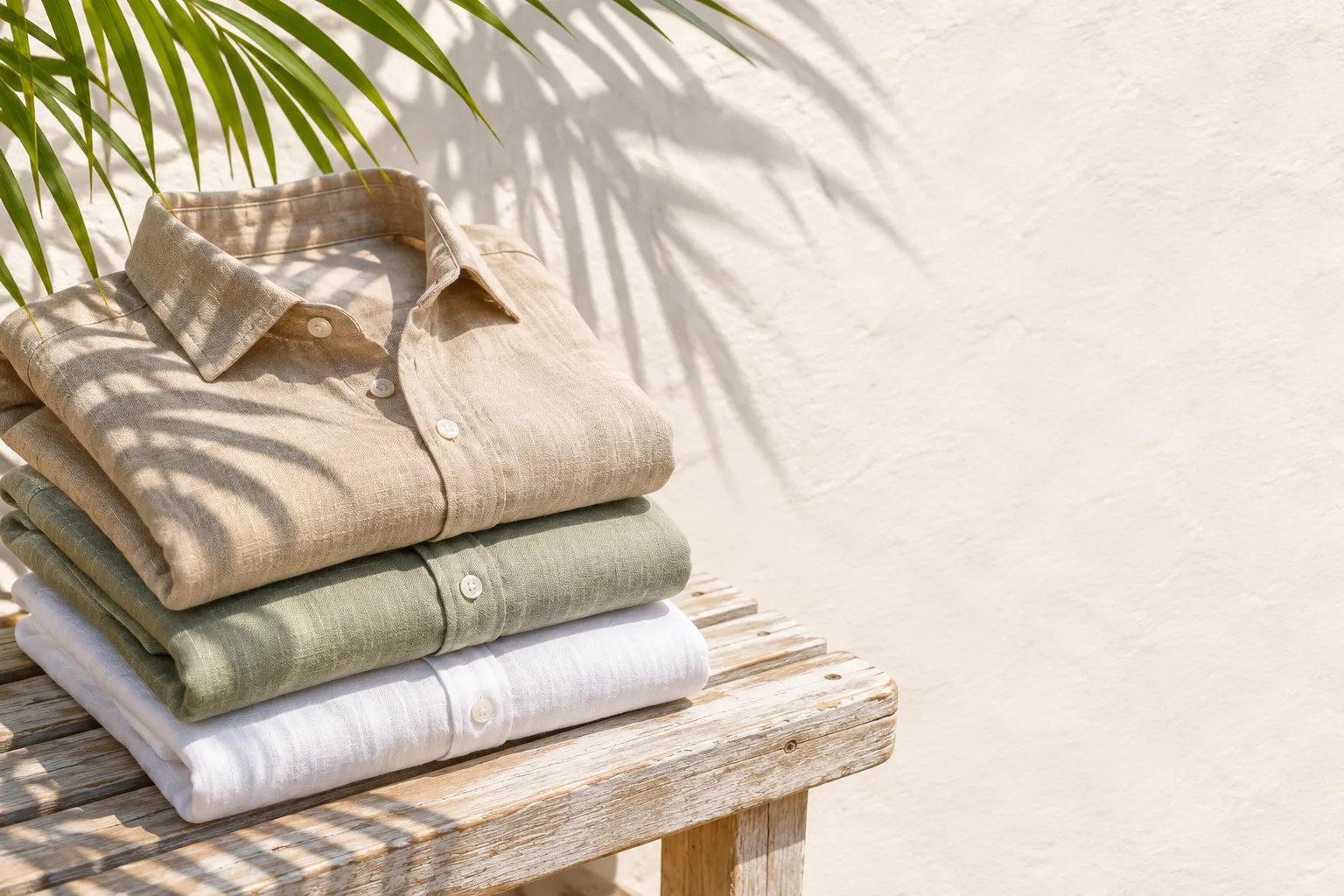 Flare · 3:2
Hero banner for a summer sale on a fashion site: three folded linen shirts in sand, sage and white stacked on a sun-bleached wooden bench, palm leaf shadows across them. Bright midday light, clean and airy. Leave the right half empty for copy. No text, no logos, no watermark.
Spaces and illustration
Sunburst · 16:9Architectural interior photo of a small Scandinavian apartment kitchen at golden hour: pale birch cabinets, a white terrazzo countertop, a round dining table with four wooden chairs, a pendant lamp, and tall windows with sheer curtains. Wide-angle, eye-level, straight vertical lines, warm late-afternoon light. Photorealistic. No people, no text.
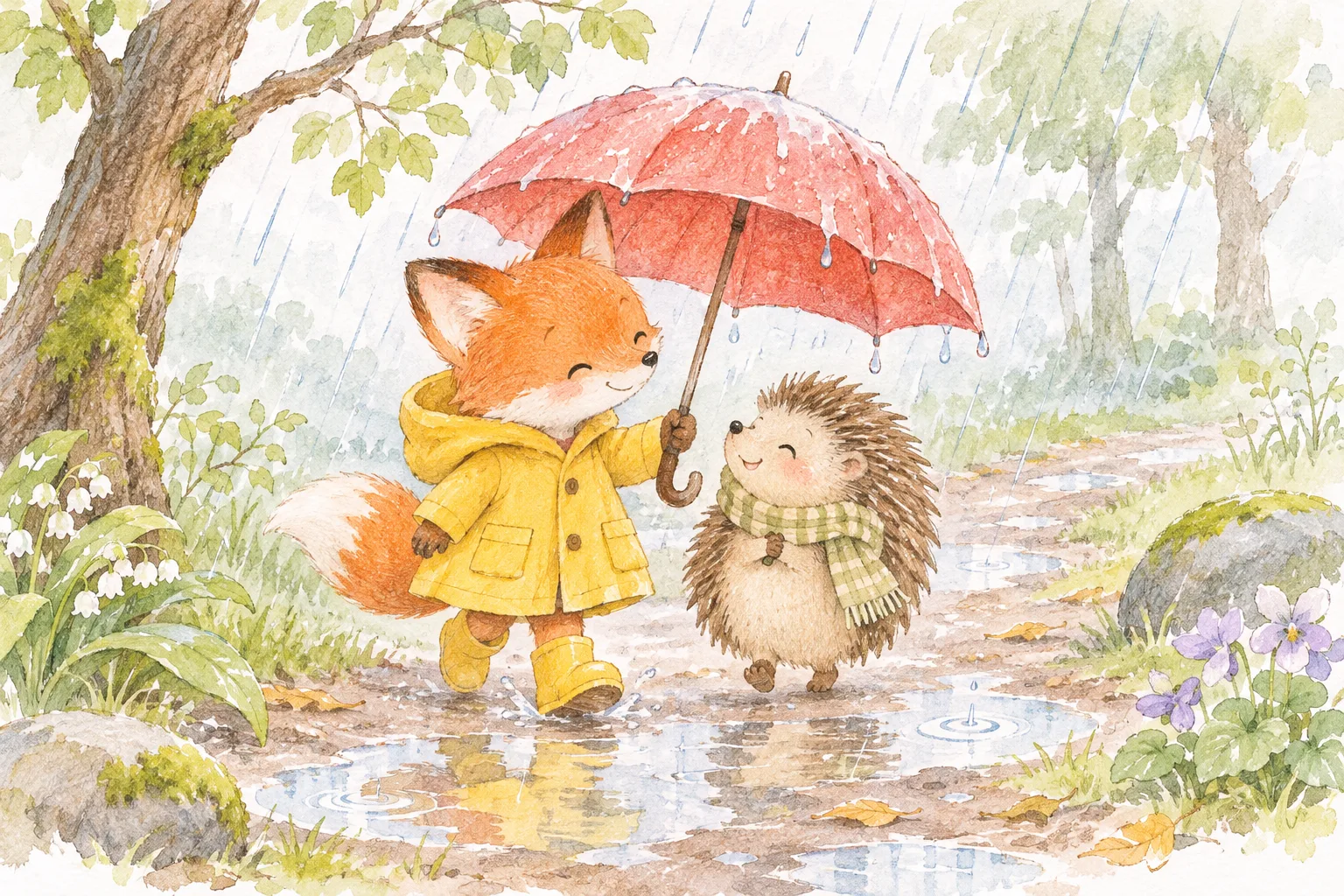 Flare · 3:2
Children's picture-book illustration in loose watercolor and colored pencil: a small fox in a yellow raincoat sharing an umbrella with a hedgehog on a rainy forest path, puddles reflecting the sky, soft greens and warm browns, lots of white paper showing through. Gentle, cozy mood. No text.
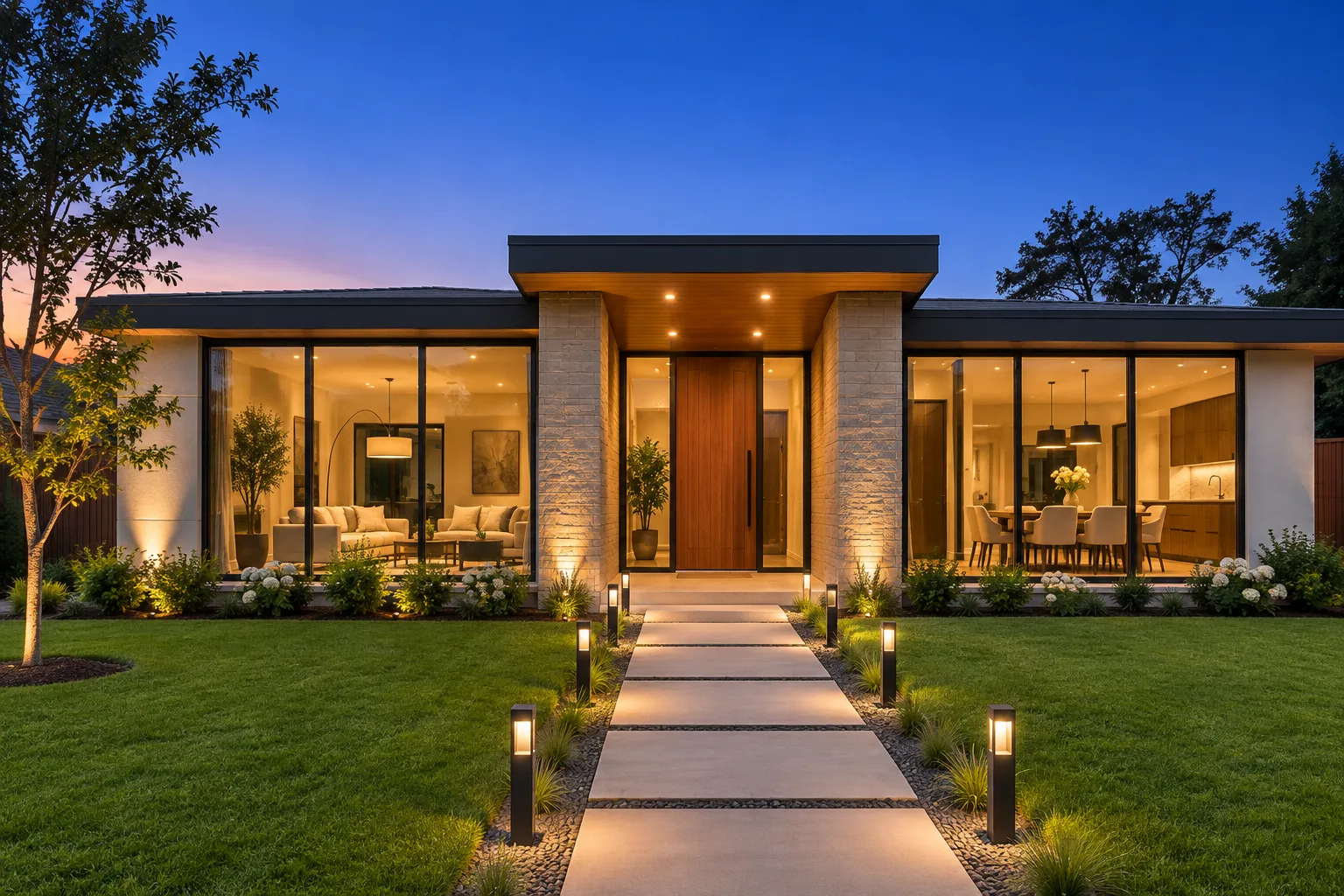 Sunburst · 3:2
Real estate twilight exterior photo of a modern single-story house with warm light glowing from floor-to-ceiling windows, a lit path to the front door and a neatly trimmed lawn. Deep blue sky just after sunset, straight vertical lines, eye-level wide shot. Photorealistic. No people, no text.
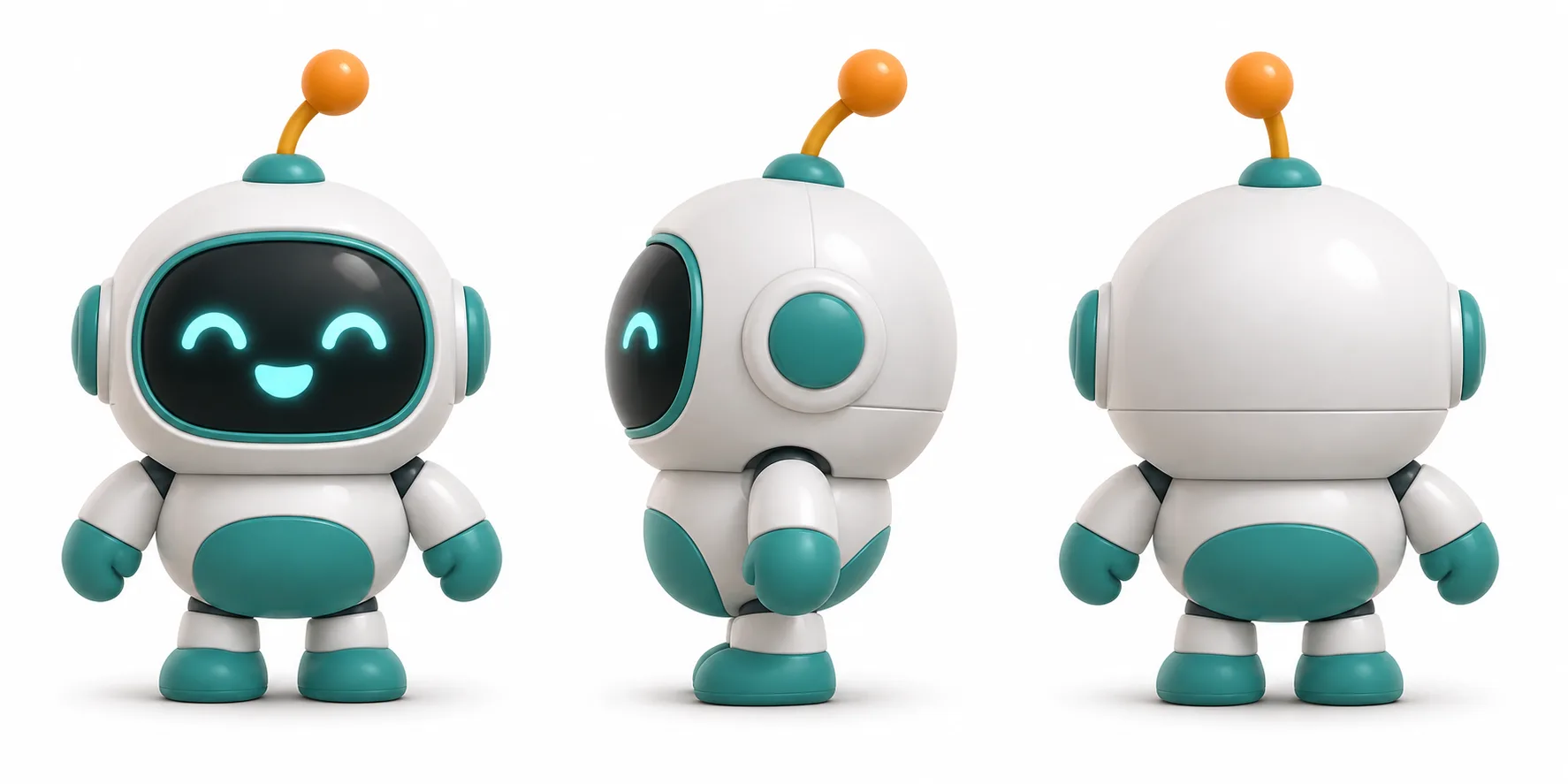 Flare · 2:1
Character sheet for a friendly robot mascot: the same small round robot shown from the front, side and back in a single row on a plain white background, matching proportions and colors in every view, soft 3D render style, teal and white with one orange antenna. No text, no labels.
Graphics and design
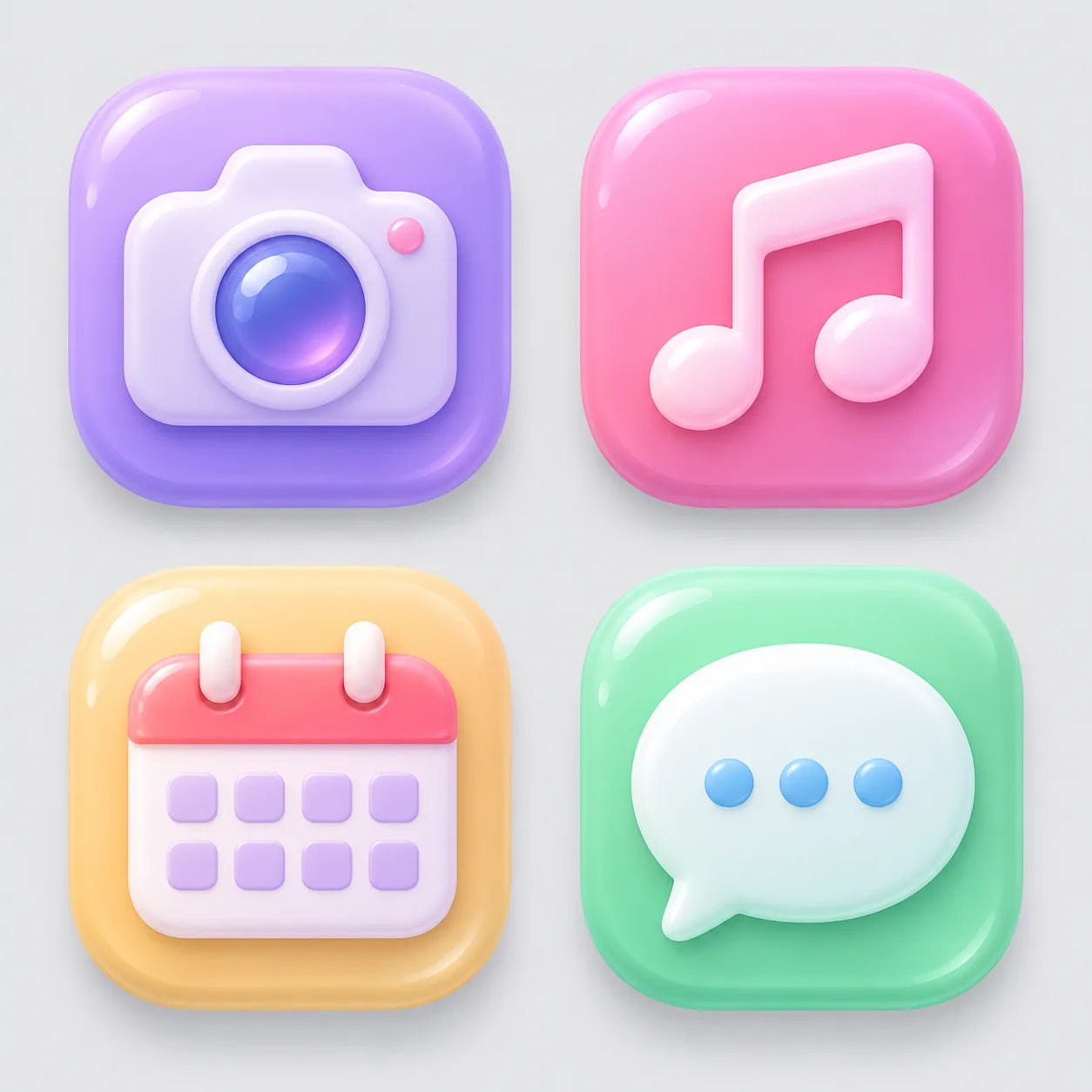 Flare · 1:1
A set of four app icons in a 2-by-2 grid on a light gray background: a camera, a music note, a calendar and a chat bubble. Each is a glossy, rounded 3D object in soft pastel colors with subtle shadows, centered in its own cell with equal spacing. Consistent style and lighting across all four. No text, no letters.
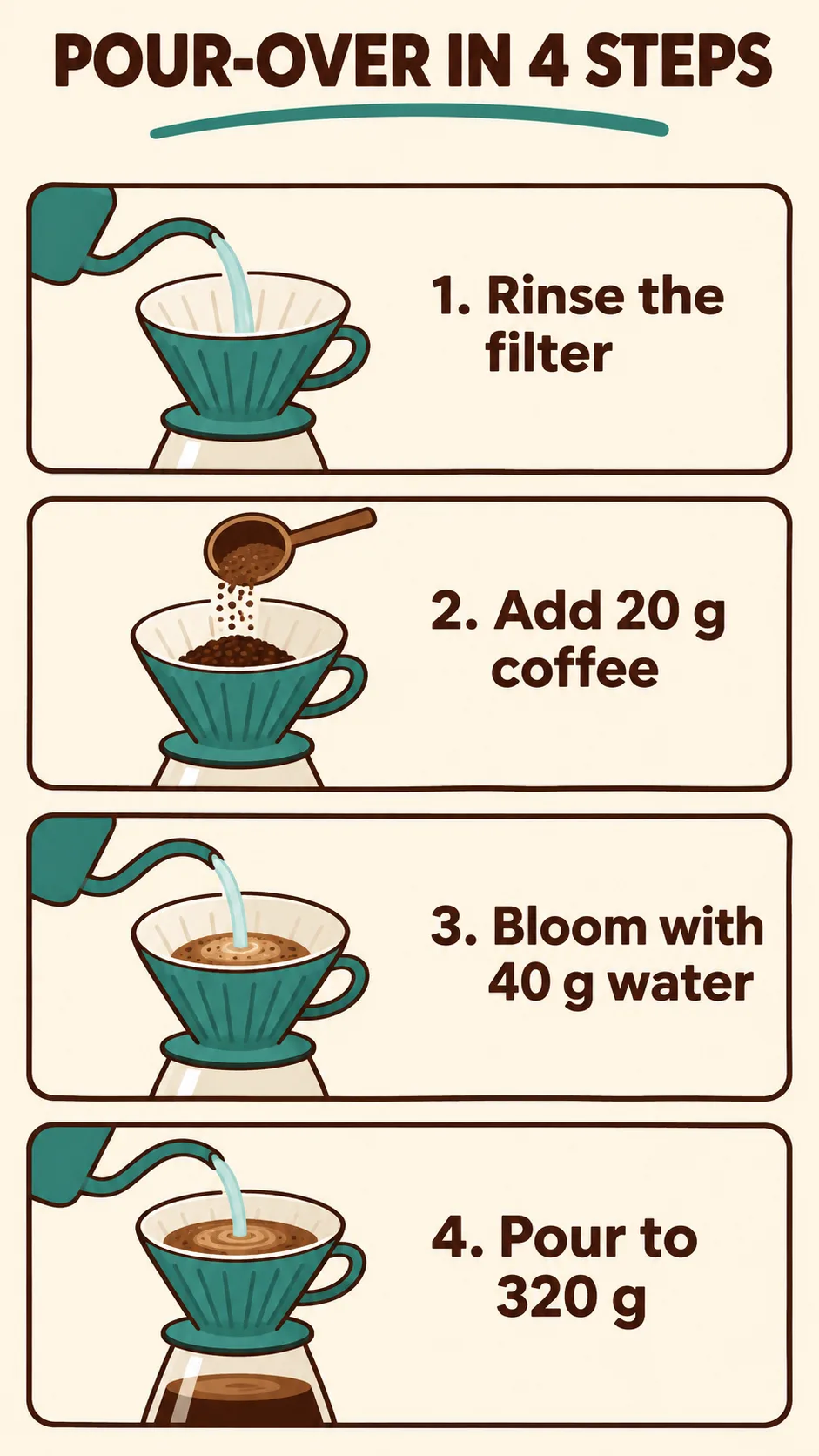 Sunburst · 9:16
Vertical infographic titled "POUR-OVER IN 4 STEPS" at the top. Four numbered panels stacked top to bottom, each with a simple flat illustration and a short caption, exactly: "1. Rinse the filter", "2. Add 20 g coffee", "3. Bloom with 40 g water", "4. Pour to 320 g". Clean layout, cream background, dark brown and teal accents, generous margins. No other text, no logos.
 Flare · 1:1
Flat vector logo concept for a bakery called "Rise & Crumb": a simple wheat stalk curving into a rising sun, warm mustard and dark brown, on a plain off-white background. The name "Rise & Crumb" set below the mark in a rounded serif. Centered, generous margins. No other text.
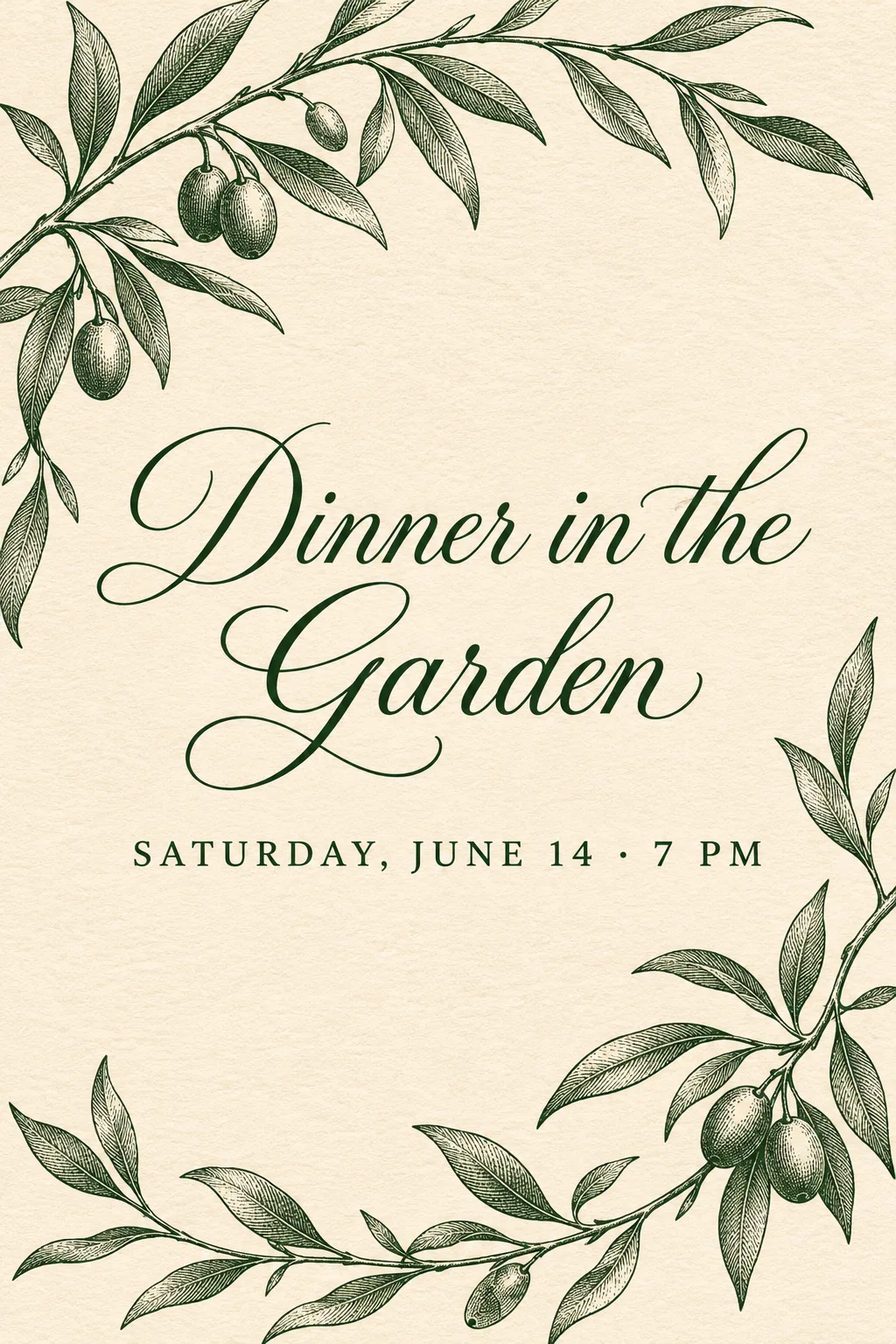 Sunburst · 2:3
Event invitation card for a garden dinner party: botanical line drawings of olive branches framing the card, cream paper texture, deep green ink. Text, exactly: "Dinner in the Garden" as the title, then "Saturday, June 14 · 7 PM" below it. Elegant script for the title, small capitals for the date. No other text.
What are the most common GPT Image 2.6 prompt mistakes?
Most failed generations come from a few habits. Here is how to spot and fix them.
| Mistake | What happens | Fix |
|---|---|---|
| Only adjectives ("stunning, 8K, award-winning") | Generic image with no clear subject or use | Name the subject, materials and where the image will be used |
| Text without quotes | Words get paraphrased or misspelled | Quote the exact words and say where they go |
| Long paragraphs of text on the image | Letters break down in the small lines | Keep to a headline and one short line |
| No layout instruction | Subject lands where your copy needs to go | Say where the subject sits and where to leave space |
| No exclusions | Stray words, logos or watermarks appear | End with "no text, no logos, no watermark" |
| Describing a product instead of attaching it | Shape and label drift from the real item | Attach it as a reference image and give it a role |
| Several edits in one request | Unwanted changes elsewhere in the image | One change per request; repeat what must stay the same |
Which GPT Image 2.6 settings should you pick on Auteo?
These are the options Auteo offers for GPT Image 2.6:
| Setting | Options on Auteo | How to choose |
|---|---|---|
| Tier | Flare, Sunburst | Flare to explore, Sunburst for the final image; same credits |
| Aspect ratio | 16 ratios from 1:3 to 3:1, plus auto | 1:1 or 4:5 for feeds, 9:16 for stories, 16:9 for thumbnails and banners, 2:3 for posters |
| Resolution | 1K, 2K, 4K | 1K while iterating, 2K or 4K for print and large screens |
| Reference images | Up to 16 (PNG, JPEG, WebP) | For products, faces, logos and styles that must match |
| Prompt length | Up to 20,000 characters | Usually 50 to 150 words; labeled lines for complex scenes |
The OpenAI API also exposes quality and complexity settings, animated GIF and SVG output, and markup edits. The Auteo studio does not offer those controls today, so every image in this guide used the settings above. The generate button always shows the exact credit cost before anything is charged.
Where does GPT Image 2.6 still fall short?
OpenAI lists a few limits for this release. Complex prompts can take up to about two minutes to render. Text and typography can still come out wrong. Recurring characters and brand elements may drift from one image to the next, and precise control over layout-sensitive compositions is still limited.
Each has a simple workaround. Keep on-image text short and proofread it. Attach the same references every time you need a character or product to repeat. For tight layouts, describe positions in plain terms (left third, top edge, centered) and iterate on Flare until the composition is right before spending time on a Sunburst render.
Got any questions left?
What is the best prompt structure for GPT Image 2.6?
Should I use GPT Image 2.6 Flare or Sunburst?
How do I get GPT Image 2.6 to spell text correctly?
How long can a GPT Image 2.6 prompt be on Auteo?
Which aspect ratios and resolutions does GPT Image 2.6 support on Auteo?
Can I use reference images with GPT Image 2.6?
Sources
What changed on this page
- First published with the six-part formula, a Flare vs Sunburst comparison and 12 example prompts, each shown with its real GPT Image 2.6 output.